Blog

  • Best AI Video Generator in 2026: Top 10 Picks

    Top 10 Best AI Video Generator Picks in 2026, Ranked for Creators

    The best AI video generator in 2026 is not the one that produces the flashiest five-second demo on social media. It is the one that lets a creator make enough usable shots to finish a real video without accidentally spending the month’s production budget on three cinematic clips and a bruised ego.

    I have learned to judge these tools the same way I judge a creator stack: by the distance between a cool experiment and a publishable deliverable. That means looking at iteration speed, pricing mechanics, resolution, and whether the platform makes sense for a solo YouTuber, a short-form editor, or a team building campaigns at actual volume. This ranking focuses on the 10 strongest creator choices built around Runway’s Gen-4 ecosystem and Google’s Veo and Gemini video options, where the available numbers are clear enough to do the boring but essential budget math.

    My controversial take is simple: no single model wins every job. Runway is the more creator-friendly subscription bet, while Google’s usage-priced video options can make more sense for high-resolution work with a defined production plan. The rankings below are about the best fit, not empty “one tool replaces your entire studio” hype.

    One quick translation before we start: when I say hero shot, I mean the one premium clip the audience actually remembers. When I say b-roll, I mean the supporting cutaways that cover edits or add context. Those two jobs should not be budgeted the same way, and AI video gets much easier to afford once you stop treating every generated second like it deserves blockbuster treatment.

    Also, credits are only useful if you can mentally convert them into money. On Runway’s annual pricing, 7,500 credits for Standard, 27,000 for Pro, and 114,000 for Max work out to very different effective per-credit costs. In plain English, a five-second Gen-4 clip at 60 credits is roughly a little over a dollar of included value on Standard, about three quarters of a dollar on Pro, and under fifty cents on Max if you fully use the plan allotment. A five-second Turbo clip at 25 credits is much cheaper. That is why retries matter more than sticker price. The first render is not what drains a budget. The tenth “almost there” render does.

    At-a-Glance: The Creator Budget Table

    Pick Price mechanic Published output note Best use-case
    1. Runway Gen-4 Video 12 credits/sec; 5s = 60 credits, 10s = 120 Published cost math tied to 5- and 10-second generations; 1080p reference pricing Hero shots, premium cutaways, title moments
    2. Runway Gen-4 Turbo 5 credits/sec; 5s = 25 credits, 10s = 50 Published cost math tied to 5- and 10-second generations; 1080p reference pricing Fast testing, b-roll, rough-cut exploration
    3. Runway Pro Annual Plan $28/month annually; 27,000 credits/year Budget base for Gen-4 and Turbo workflows Weekly creators who need room to iterate
    4. Google Veo 3.1 at 1080p With Audio $0.40 per count 720p/1080p with audio; current material supports up to 8-second clips Ads, promos, launch videos, client work
    5. Google Veo 3.1 at 4K With Audio $0.60 per count Up to 4K with audio; current material supports up to 8-second clips Premium campaign footage and multi-format crops
    6. Runway Standard Annual Plan $12/month annually; 7,500 credits/year Budget base for Gen-4 and Turbo workflows Entry-level paid creators
    7. Gemini Omni Flash at 720p 5,792 tokens/sec 720p output tier Social tests, first-pass scenes, internal review
    8. Gemini Omni Flash at 360p 1,931 tokens/sec 360p output tier Previsualization and cheap concept validation
    9. Gemini Omni Flash at 1080p 8,688 tokens/sec 1080p output tier Approved final scenes that need cleaner delivery
    10. Gemini Omni Flash at 4K 17,376 tokens/sec 4K output tier Large-screen use and heavy cropping in post

    A note on scope, because creator comment sections love an ambush: yes, people are absolutely using Kling, Pika, Luma Dream Machine, Sora, Hailuo, Seedance, and Grok Imagine in 2026. I am not pretending otherwise. I am narrowing this ranking to Runway and Google options because their live pricing mechanics are clear enough to compare without turning the whole exercise into interpretive dance performed with screenshots of plan pages.

    1. Runway Gen-4 Video

    Runway Gen-4 Video is my number-one pick for creators who want an AI video generator to feel like part of a real editing workflow rather than a technical experiment that lives in a browser tab forever. It sits inside an image-and-video platform, which matters more than it sounds. When I am developing a visual direction for a video, I do not want to bounce between six disconnected tools just to go from reference frame to motion test. I want momentum, and Runway’s setup is built around that kind of creator behavior.

    The cost reality needs to be front and center. Gen-4 Video uses 12 credits per second. That means a five-second generation costs 60 credits, while a 10-second clip costs 120 credits. Those are not scary numbers in isolation, but anyone who has made a video with generative footage knows the first output is rarely the keeper. A sequence of 10 five-second attempts costs 600 credits before you have even started testing alternate camera moves, transitions, or versions for vertical and horizontal edits.

    The published creator-friendly detail here is that the budgeting rhythm is clean: five- and 10-second generations are easy to understand, and the cost math is anchored to 1080p reference output. That makes planning less chaotic than tools that hide the expense inside vague usage meters. On Runway Standard annual pricing, a five-second Gen-4 clip works out to roughly $1.15 of included-credit value if you fully use the plan. On Pro, it is about $0.75. That sounds fine until you remember that five bad attempts cost five times as much, which is how people end up discovering the true meaning of “creative exploration” on their invoice.

    Still, this is the premium creative choice when the clip is the moment. Think channel trailers, hero shots for a sponsored reel, music-video cutaways, title-sequence imagery, or a surreal scene that would cost a small creator a painful amount to shoot conventionally. I rank it first because it makes the strongest case for paying for intentional AI generation rather than treating video as a disposable commodity. Use Gen-4 Video for the shots viewers will remember, not background filler nobody watches twice.

    Best for: hero shots, memorable visual beats, and premium campaign moments. Skip if: you are still discovering the concept or need cheap volume. Bottom line: use Gen-4 Video for keepers, not for endless tinkering.

    2. Runway Gen-4 Turbo

    Gen-4 Turbo is the sensible workhorse, which is honestly the compliment I care about most in creator tech. It costs 5 credits per second, compared with 12 credits per second for standard Gen-4 Video. That gap changes behavior. At Turbo’s rate, a five-second clip costs 25 credits. A 10-second clip costs 50 credits. Suddenly, testing a handful of variations no longer feels like watching coins drop into an arcade machine with a very persuasive loading spinner.

    I remember the first time I started treating AI video as a rough-cut tool instead of a final-output tool. My ideas got better because I stopped trying to write the perfect prompt on attempt one. Turbo supports that healthier process. You can explore pacing, camera energy, scene concepts, and visual metaphors before deciding whether a particular moment deserves the higher-cost Gen-4 treatment. For a creator cutting weekly explainers, reels, reaction packages, or b-roll-heavy essays, that difference is enormous.

    It also shares the most useful part of Runway’s budgeting logic: the same simple five- and 10-second generation structure. On Standard annual pricing, a five-second Turbo attempt is roughly $0.48 of included-credit value if you use the full credit pool. On Pro, it is roughly $0.31. That affordability is not just nice. It changes the learning curve. Turbo is where creators can afford to be wrong, and being wrong a few times is still the fastest way to get good at prompting.

    This is the best AI video generator option for people who need volume and have enough taste to know that volume is not the same as quality. I would use Turbo for mood-setting backgrounds, transition shots, social hooks, mock product scenes, and rapid concept boards. Then I would reserve more expensive generations for the opening five seconds and the video’s big emotional beat. Turbo may not carry the same premium aura as Gen-4 Video, but it is the tool that helps a creator actually ship on schedule. In the creator economy, shipping wins more often than perfectionism.

    Best for: testing, rough cuts, supporting cutaways, and weekly publishing. Skip if: every clip needs to feel premium on the first pass. Bottom line: use Turbo for exploration, then promote the winners to Gen-4.

    3. Runway Pro Annual Plan

    For an independent creator who has already moved beyond casual testing, Runway Pro on the annual plan is the smartest subscription commitment in this ranking. It costs $28 per month when billed annually, versus $35 month to month, and includes 27,000 credits per year. That annual price difference works out to $84 saved over 12 months. Not life-changing money, obviously, but enough to cover a useful plugin, stock assets, or the takeout you order after a client asks for “one tiny final revision” at 9:47 p.m.

    The 27,000-credit allowance is where this tier becomes practical. At the 5-credits-per-second Turbo rate, that theoretical pool equals 5,400 seconds of output. At Gen-4 Video’s 12 credits per second, it equals 2,250 seconds. Nobody should plan as though every generated second will make the final edit, but those figures reveal the core point: Pro supports a serious testing habit. You can create drafts, discard weak outputs, and still have room to make the clips that survive into published work.

    If you average that annual pool across the year, Pro behaves like roughly 2,250 credits per month. In practical creator math, that is about 90 five-second Turbo clips or 37 five-second Gen-4 clips before retries start eating your lunch. It is also the cleaner commercial lane inside Runway because paid plans are marketed for professional use and remove watermarks on paid tiers. For people monetizing videos rather than just making cool experiments for group chats, that matters.

    I rank Pro above the cheaper Standard plan because creators tend to underestimate iteration. The fantasy budget is always one perfect clip per scene. The real budget includes prompt tweaks, alternate references, failed motion, format changes, and the inevitable moment when a client decides the entire campaign needs to feel “more premium.” Pro provides the breathing room that keeps AI video from becoming a rationed novelty. If content creation is part of your weekly business rather than an occasional hobby, this is the Runway plan I would start with.

    Best for: solo businesses, weekly YouTubers, and freelancers who need repeatable output. Skip if: you only generate a few clips per month. Bottom line: Pro is the most balanced Runway subscription for people who actually publish.

    4. Google Veo 3.1 at 1080p With Audio

    Google Veo 3.1 at 1080p with audio is the clearest choice for creators who need a conventional production target. Most creator video does not need 4K to work. Plenty of audience attention happens on phones, in compressed feeds, embedded players, and autoplay windows where a strong opening frame matters vastly more than pixel-count bragging rights. The posted usage price is $0.40 per count for 720p and 1080p video with audio generation, placing 1080p in a useful middle ground.

    What I like about this route is the explicit production logic. A subscription can be comforting because it feels predictable, but it can also encourage random experimentation because credits are already sitting there. Direct usage pricing flips that. Before generating, you decide what the shot is for, how many versions you can afford, and whether the footage earns its place in the edit. That is not as emotionally fun as unlimited-feeling creative play, but it is often better for commercial discipline.

    The current material also makes Veo easier to plan than some people assume. It supports 720p and 1080p here, and the published single-clip ceiling is up to eight seconds, with 4-, 6-, and 8-second options in some modes. For working-budget math, creators often treat this lane as roughly $0.40 per generated second at 720p or 1080p with audio. That means an eight-second attempt lands around $3.20 before retries. One or two carefully planned generations feels sane. Fifteen spontaneous variations because the prompt mood was “let’s see what happens” feels less sane very quickly.

    This is the best AI video generator choice for polished launch videos, course promos, paid ads, client work, and branded content where 1080p is the delivery standard. Audio generation also makes it more relevant for creators building scenes rather than silent visual inserts. My caveat is blunt: usage billing punishes vague creative direction. If you are still throwing prompts at the wall to discover the concept, Runway Turbo offers a more forgiving exploration lane. Veo 3.1 at 1080p makes more sense after the concept is locked and every generated clip has a defined job.

    Best for: client-ready scenes, brand work, and published 1080p deliverables. Skip if: you need lots of trial-and-error discovery. Bottom line: Veo 1080p is strong when you already know what the shot needs to do.

    5. Google Veo 3.1 at 4K With Audio

    Veo 3.1 at 4K with audio is the premium pick for creators who genuinely need premium delivery, and I mean genuinely. Its listed price is $0.60 per count, compared with $0.40 per count for the 720p and 1080p option. That is a 50% increase in unit price for 4K. The math is clean enough that nobody should pretend this is a negligible upgrade. It is the kind of difference that needs to be attached to a specific business reason.

    I have changed my mind about 4K over the years. I used to treat it as an automatic mark of professionalism. Then I watched plenty of expensive 4K footage underperform because the hook was weak, the edit was slow, or the creator had nothing meaningful to say. Resolution cannot rescue a dead idea. But 4K earns its place in a few very real creator scenarios: cinematic hero footage, product campaigns, large-screen presentations, premium brand spots, and projects where aggressive cropping is part of the edit plan.

    The other reason this ranks highly is that the use-case is honest. Veo’s published ceiling here reaches 4K, and the current material puts the maximum single generation at eight seconds. For working-budget math, creators often budget this lane around $0.60 per generated second. That means a full eight-second attempt lands around $4.80 before retries. Not outrageous for a signature shot. Extremely silly for a throwaway bridge clip no one will remember.

    The correct way to use this option is selective, not maximalist. Generate the establishing shot, the signature product moment, or the scene you expect to crop into multiple aspect ratios. Do not spend 4K money on an eight-second bridge clip that will be seen between captions and a talking head. That is the classic AI-video budget leak. Veo 3.1 4K ranks highly because it makes a specific kind of premium production possible, but it is not the best default choice. Treat it like a cinema lens rental, not a permanent setting.

    Best for: premium campaigns, crop-heavy edits, and the few shots that justify high-resolution spending. Skip if: your audience will mostly see the video in social compression anyway. Bottom line: Veo 4K is excellent for selective luxury, not daily habit.

    6. Runway Standard Annual Plan

    Runway Standard is the best entry point for a creator who has moved past free-tool curiosity but has not yet proved that AI video belongs in the weekly workflow. It costs $12 per month when billed annually, or $15 on a monthly plan, and includes 7,500 credits per year on the annual option. The $3 monthly difference may look tiny, but across a year it adds up to $36. More importantly, annual pricing forces a useful decision: this is either part of your production stack or it is not.

    With 7,500 credits, a creator has enough room to learn how quickly generation costs can accumulate. At Gen-4 Turbo’s 5 credits per second, that is a theoretical 1,500 seconds of video. At Gen-4 Video’s 12 credits per second, it is 625 seconds. Again, nobody gets a perfect final video from every generated second, and planning around theoretical maximum output is rookie behavior. But Standard gives a new user enough runway, pardon the unavoidable pun, to build muscle memory without immediately needing a finance spreadsheet.

    If you average the annual credit pool across the year, Standard behaves like roughly 625 credits per month. That is about 25 five-second Turbo clips or 10 five-second Gen-4 clips before retries. Which is to say: enough to learn, not enough to be careless. I actually like that. Constraint is annoying, but it teaches discipline faster than a giant credit bucket does.

    I would recommend this tier to newsletter operators adding motion to social posts, podcasters creating visual clips, faceless-channel creators testing original b-roll, and freelancers who have one or two AI-video-friendly clients. It is not the right tier for a daily short-form machine. The credit balance will feel less generous once you start iterating aggressively. Still, Standard deserves this spot because it is a sane commitment at a sane price, and sane is underrated in a market full of tools designed to make every creator feel one prompt away from a Hollywood studio.

    Best for: first paid AI video workflows and part-time creator experimentation. Skip if: you publish constantly or retry heavily. Bottom line: Standard is the beginner plan that stays useful long enough to teach real habits.

    7. Gemini Omni Flash at 720p

    Gemini Omni Flash at 720p is where tokenized video billing starts to become a practical creator-planning exercise rather than a cloud-pricing headache. The video output rate is 5,792 tokens per second at 720p. That is substantially higher than the 1,931 tokens per second required for 360p, but dramatically lower than the 8,688 tokens per second required for 1080p. For creators making fast social content, that middle position is appealing.

    There is a reason 720p refuses to die. It is not glamorous, but it can be completely adequate for mobile-first clips, visual tests, storyboards, internal reviews, and social posts where captions, sound, pacing, and a recognizable on-screen personality are doing most of the engagement work. I remember when creators obsessed over uploading the sharpest possible file while still filming their main point in a badly lit bedroom. The audience does not reward technical vanity the way creators imagine.

    Omni Flash is less intuitive than Runway or Veo because the budget lever is token rate, not a simple per-clip number that politely introduces itself. That raises the learning curve a bit. The upside is that Google makes the resolution tradeoff very visible. The downside is that creators who hate spreadsheet energy may find themselves longing for simpler math and fewer dashboards.

    This option is especially smart when the output may never become the final exported asset. Use it to validate motion direction, see whether a generated scene supports your script, or create first-pass materials for an editor. The token system makes resolution a direct budget decision, which I appreciate because it forces intentionality. You are not simply clicking a higher-resolution checkbox because it sounds better. You are choosing whether the added token load will create an outcome your audience can actually perceive. For a fast-moving content operation, 720p is often the grown-up answer.

    Best for: social-first teams, internal review, and low-drama first passes. Skip if: you want dead-simple pricing or final-delivery polish by default. Bottom line: 720p Omni Flash is a practical middle lane for creators who plan before they upscale.

    8. Gemini Omni Flash at 360p

    Gemini Omni Flash at 360p is the least glamorous option on this list, and that is precisely why it deserves a place. It uses 1,931 tokens per second of video output, the lowest listed rate among the available 360p, 720p, 1080p, and 4K choices. For creators who understand that the first version is a decision-making tool rather than a final masterpiece, lower-resolution generation can protect a surprising amount of budget.

    I love a rough preview because it kills bad ideas quickly. A creator does not need 4K pixels to learn that the framing feels awkward, the motion is too busy, or the visual metaphor does not land. The industry habit of generating expensive final-quality assets before the concept is proven is one of those things that looks sophisticated in a presentation and stupid in an actual production calendar. At 360p, the goal is not to impress anyone. The goal is to avoid wasting time.

    This is also the easiest Omni Flash lane to justify when prompt reliability is shaky. If you are not yet confident that the model will understand your shot language, reference setup, or scene intent, paying the lowest listed token rate for the learning phase is just good manners toward your budget. Your pride may want 4K. Your bank account wants a draft.

    Use this tier for previsualization, shot sequences, pitch concepts, mood experiments, and internal creative approvals. It is also a sharp choice for agencies and creator teams where one person needs to communicate an idea before the editor, creative director, or client weighs in. I would not use 360p for a finished YouTube upload or a polished sponsored deliverable. That would be penny-wise in the worst way. But I rank it because creators need an economical testing lane, and this is exactly that. The most efficient production teams do not generate everything at final quality. They earn final quality through better decisions.

    Best for: previs, pitches, and cheap reality checks. Skip if: the export itself needs to look client-ready. Bottom line: 360p is where you prove the idea before the expensive version exists.

    9. Gemini Omni Flash at 1080p

    Gemini Omni Flash at 1080p is the practical delivery upgrade for creators who have already validated a concept and now need a cleaner file for final editing. It uses 8,688 tokens per second, which is 50% more than the 5,792 tokens per second required at 720p. That percentage matters. A jump from 720p to 1080p should be a deliberate final-stage choice, not an automatic default just because everyone enjoys seeing the larger number in the export settings.

    For the right project, though, 1080p remains the creator economy’s center of gravity. It is a dependable delivery resolution for long-form YouTube, higher-end social campaigns, courses, presentation content, and client videos. When I am cutting a piece that mixes talking-head footage, screen recordings, licensed assets, and generated scenes, 1080p is usually the point where everything can live together without the AI insert instantly looking like it belongs in a different technical universe.

    The learning curve here is less about prompting than restraint. Once creators see a scene working, the temptation is to regenerate every maybe-useful variation at the higher resolution just in case. That is how a sensible workflow becomes a collection of expensive backups no one asked for. Approved scene first, upscale second is still the adult order of operations.

    The workflow I would use is straightforward: explore at 360p or 720p, narrow the direction, then generate only approved scenes at 1080p. That may sound obvious, but creative teams skip this discipline constantly because AI video makes generation feel frictionless. The invoice does not care how frictionless the interface felt. Omni Flash at 1080p earns its ranking because it rewards selective escalation. It gives creators a quality target that is useful for publishing without demanding the 4K token commitment. For most final videos, that is the rational place to stop.

    Best for: final approved scenes and standard creator delivery. Skip if: you are still in discovery mode. Bottom line: 1080p Omni Flash is the sensible finish line for most publishable work.

    10. Gemini Omni Flash at 4K

    Gemini Omni Flash at 4K is the specialist’s choice, not the default winner. Its listed output billing is 17,376 tokens per second, exactly double the 8,688 tokens per second charged at 1080p and triple the 5,792 tokens per second at 720p. Those ratios make the decision beautifully uncomplicated. If the production does not need 4K, do not generate 4K. There is no prize for spending three times the 720p token rate on footage destined for a vertically cropped social post.

    That said, I am glad this option exists. High-resolution generation matters when the footage will be reused across formats, featured on large displays, incorporated into premium campaigns, or cropped tightly in post-production. A single wide 4K scene can potentially support a landscape cut, a vertical social crop, and a square promotional asset. That kind of reuse is where expensive generation starts behaving like an investment rather than an indulgence.

    The trap, as always, is consistency. A beautiful 4K clip is still just one clip. If the next generated shot changes wardrobe details, object placement, hand anatomy, or scene continuity, the extra resolution does not fix the editorial problem. It simply gives you a sharper version of the problem. That is why I keep this ranked tenth: high-end output is useful, but continuity across multiple clips is still the tax every AI video workflow pays.

    My strongest recommendation is to plan the crop before generating. Decide the subject placement, the safe zones for captions, and the derivative formats you will actually publish. Otherwise, 4K simply gives you a larger, more expensive version of an unfocused shot. This entry ranks tenth not because it is weak, but because it is easy to misuse. The best AI video generator is never just a model choice. It is the model-resolution-budget combination that matches the distribution plan. Gemini Omni Flash 4K can be fantastic for the right campaign. For everyday creator output, it is overkill with excellent branding.

    Best for: premium repurposing, big-display use, and aggressive cropping. Skip if: the shot is disposable or the edit will bury it in social compression. Bottom line: 4K Omni Flash is a specialist tool, not a lifestyle.

    Real-World Budget Scenarios for Creators

    Here is the math creators actually ask for after the hype leaves the room. Say you are making a 10-minute YouTube video and want six five-second AI cutaways. If those six clips are made in Runway Turbo and every final shot somehow works on the first try, that is 150 credits total. Real life is less charitable. At four attempts per usable cutaway, you are at roughly 600 credits. On a Runway Standard annual plan, that is basically a month’s worth of your averaged credit rhythm. On Pro, it is much more comfortable.

    Now make the same video a little fancier: six five-second Turbo cutaways plus two five-second Gen-4 hero shots. Final-output-only math is 270 credits total. At four attempts per usable scene, you are at roughly 1,080 credits. That still fits inside the average monthly breathing room of Runway Pro, but it stops being casual. This is why people who publish weekly almost always outgrow the cheapest tier faster than they expect.

    If you budget the same six five-second cutaways through Veo 1080p using working per-second creator math, you are at about $12 for final outputs and roughly $48 if it takes four tries per scene. Move that same idea to 4K and the numbers climb to about $18 final-only and roughly $72 with four tries per scene. None of that is outrageous for client work. All of it becomes outrageous if you are still using the model to discover what the idea was supposed to be.

    That is also why the typical monthly spend for a solo creator in 2026 lands across such a wide range. Light use can stay in the low tens of dollars. Weekly publishing with regular retries, upscales, and multiple scenes can easily move into the low hundreds. The cost driver is not the first successful generation. It is the failed attempts you needed to get there.

    Commercial Rights: Good, but Not Magic

    Commercial use is better than it was, but it is still not a thing to hand-wave away because a checkout page felt professional. Runway’s paid tiers are the cleaner commercial option in this comparison, including watermark removal on paid plans. Google’s Veo and Gemini outputs can fit commercial workflows too, but the exact usage rights still sit inside Google’s product and platform terms. And that same warning applies to other popular tools creators use outside this ranking.

    The important distinction is this: being allowed to use generated footage commercially is not the same as owning every downstream right in every situation. Trademark issues, likeness issues, rights of publicity, prohibited-use rules, and enterprise contract language still matter. If you make money from your videos, treat licensing as part of production, not an annoying legal side quest you promise yourself you will read later.

    The Part Demos Hide: Learning Curve, Prompt Reliability, and Consistency

    Every current AI video platform is better at making one exciting short clip than at maintaining continuity across several of them. Multi-clip character consistency remains the hard part. Wardrobe changes appear from nowhere. Hands become interpretive. Object placement wanders. Camera continuity forgets what it was doing. None of this is unique to one vendor. It is simply the tax of the category in 2026.

    The most reliable creator workflow is boring in the best way: lock a character sheet, reuse reference frames, keep camera motion simpler than your ego wants, and plan on editorial stitching in post. Runway Turbo is friendlier for learning because it makes failed attempts cheaper. Veo is better when the concept is already defined and the higher-fidelity result has a clear business case. Omni Flash becomes useful when your team is disciplined enough to treat resolution as a budget dial rather than a status symbol.

    If you are new to this category, that is my most honest warning: prompt skill matters, but process discipline matters more. The creator who budgets retries, locks references, and escalates quality only after approval will usually outperform the creator who keeps chasing one miraculous all-in-one prompt.

    What About Kling, Pika, Luma Dream Machine, Sora, Hailuo, Seedance, and Grok Imagine?

    They matter. Kling is often the motion-realism conversation piece. Pika stays attractive for creators who want something more approachable and budget-friendly. Luma Dream Machine remains appealing for fast stylistic work. Sora lives in the more premium, more selective lane. Hailuo, Seedance, and Grok Imagine are also part of the broader creator discussion. I am not ranking them here because I would rather narrow the list to options with cleaner published pricing and easier apples-to-apples production math than pretend I have achieved perfect comparability across a market that changes every five minutes.

    That is not a dismissal. It is me refusing to fake precision. If your workflow already revolves around one of those tools and it is making you money, congratulations: you have found the metric that matters more than a listicle.

    The Creator Verdict on AI Video in 2026

    If I were building an AI video workflow from scratch today, I would use Runway Gen-4 Turbo for concept exploration, upgrade selected hero shots to Gen-4 Video, and choose Google’s 1080p or 4K options only when the final deliverable has a clear commercial reason to justify usage-based costs. That setup is less sexy than declaring one model the universal champion, but it is how creators keep output high without turning experimentation into a financial leak.

    For most solo creators, Runway Pro at $28 per month on annual billing is the strongest all-around commitment because 27,000 annual credits create room to iterate. For occasional users, Runway Standard at $12 per month annually is the lower-risk starting point. For high-resolution campaign work, Veo 3.1 and Gemini Omni Flash make resolution a visible budget lever. The winning move is not generating more footage. It is generating the right footage, at the right cost, with a clear place in the edit.

    If you want the shortest possible answer after all this budget math, here it is: Runway Turbo is the smartest place to start, Runway Gen-4 is where you spend on keepers, and Google’s Veo and Gemini options are strongest when a planned commercial deliverable justifies the usage bill. That is the creator version of choosing the best AI video generator in 2026: less fantasy, more finish line.

  • BaseTube — August 2026 Product Update

    BaseTube — August 2026 Product Update

    August was mostly about foundations.

    BaseTube is still in beta, and before we open it to more creators, a few parts of the platform need to be solid: uploading, media delivery, search, content management, and analytics.

    Over the past few weeks, we shipped major improvements across all five.

    Creators already have platforms for discovery. YouTube, TikTok, Instagram and others are very good at distributing attention.

    What creators have much less control over is what happens after that attention exists: where their content lives, what they know about their audience, how they monetize it, and how much of that relationship they actually own.

    That is the layer we are building BaseTube around.

    Before we can build deeper monetization and audience tools on top, the underlying video platform has to be reliable enough to support them.

    This month moved us significantly closer.

    Uploads are now faster, resumable, and much harder to break

    Video uploads no longer pass through the BaseTube application servers.

    Files now upload directly from the browser in resumable chunks, so an interrupted connection does not mean starting again from zero. Close the tab, lose Wi-Fi, or come back later and the upload can continue from where it stopped.

    Creators can also queue multiple videos at once from Content Studio and continue working while files upload and process.

    Behind the scenes, upload, inspection, transcoding, indexing and cleanup are handled independently. That gives us a cleaner processing pipeline and more room to scale without tying video processing to the web application itself.

    The current upload path uses Cloudflare R2 as a fast ingestion layer, while completed video assets continue to be transferred into Storj, which remains BaseTube’s long-term storage layer.

    We also avoid transcoding files unnecessarily. If a video is already in a format browsers can reliably play, BaseTube can publish it without sending it through a full encoding cycle.

    For most standard MP4 uploads, that means much faster publishing.

    A 1.5 GB video was one of our test cases, not the system limit.

    Search is now instant

    BaseTube search now runs on Meilisearch.

    Search supports typo tolerance, highlighted matches, category and duration filters, synonyms, and suggestions while typing.

    A search for marakech, for example, can still find Marrakech.

    Newly published videos are indexed within seconds instead of waiting for a scheduled job.

    We have also kept a database fallback behind the search layer. If the search service becomes unavailable, BaseTube can continue returning results in degraded mode rather than simply failing.

    For creators with hundreds or thousands of videos, search is not cosmetic. It is part of how the catalogue remains usable over time.

    Faster media delivery

    Thumbnails, posters and other frequently requested media assets can now be cached and served closer to the viewer instead of every request travelling back to the original storage layer.

    The result is faster and more predictable page loading, particularly for audiences farther from the underlying infrastructure.

    This is a delivery optimisation, not a storage migration. Storj remains the durable storage layer for completed video assets.

    Content Studio is becoming a proper creator workspace

    A large part of the work this month also went into making the Creator Hub more useful day to day.

    Video management now includes inline Public/Private controls, undo support, bulk actions, search, filtering and sorting.

    Those filters live in the URL, so a specific working view can be bookmarked or shared.

    The editing experience is also tighter, with ⌘S saving, protection against leaving with unsaved changes, and a more compact interface.

    We have also continued integrating AI where it removes repetitive work rather than simply adding AI for the sake of it.

    AI-generated descriptions now produce properly structured video copy instead of generic text blocks, and AI thumbnail generation is integrated directly into the Creator Hub with its own quota system.

    Individually, these are small improvements.

    Together, they are starting to turn Content Studio from an administration page into the workspace we eventually want creators operating from.

    Analytics built around data we can actually measure

    Creator analytics received some of the most important work this month.

    Our rule is simple:

    If BaseTube cannot measure something reliably, we would rather not show it than display a precise-looking number we cannot defend.

    Watch time is now based on time actually played.

    Playback is measured using regular heartbeats, with additional events when a viewer pauses, closes the page or leaves the tab. Scrubbing through a video does not count as watch time, and mobile playback is now captured correctly.

    Average percentage watched is calculated per view. Engagement cards use real period totals. Trend comparisons now compare equivalent windows.

    And when data cannot be loaded reliably, the dashboard shows an error state instead of quietly presenting a zero.

    This foundation also changes what we can do with AI Insights.

    The goal is not to generate generic advice such as “make better thumbnails.”

    AI Insights can analyse a creator’s own catalogue across titles, thumbnails and positioning, identify gaps tied to specific videos, prioritise changes and provide per-video observations.

    Creators can also compare their channel positioning against the wider YouTube niche using a simple structure:

    They do.
    You do.
    Try next.

    Performance-based conclusions only appear when there is enough actual viewing data to support them.

    Any numerical claim shown by the AI has to be traceable back to the underlying analytics.

    AI is very good at producing confident explanations. That does not mean those explanations should automatically appear inside a creator analytics product.

    Why we’re building these foundations

    It would be easy to look at this release as uploads, search, delivery, and dashboards.

    For us, these are prerequisites.

    BaseTube is being built around a broader idea: creators should be able to convert attention they generate elsewhere into a relationship they control directly.

    That means knowing who supports their work.

    Knowing what those people watch.

    Being able to sell access to content.

    Understanding what converts.

    Communicating directly with the audience around that content.

    And having more control over the economics of that relationship.

    Content Passes are already one part of that model.

    The creator and audience tooling around them is where much of the next phase of BaseTube is heading.

    Before those layers become genuinely valuable, BaseTube has to be able to ingest content reliably, organise it, deliver it globally and measure what happens around it accurately.

    That is what August was largely about.

    There is still a lot to build.

    But the difference between the BaseTube beta at the beginning of August and the platform today is substantial.

    The foundations are getting into place.

    Now we can increasingly focus on what we wanted to build on top of them in the first place.

    BaseTube is currently available in beta at beta.base.tube.

  • How Many Views Does It Take to Earn $100k on YouTube in 2026? (3× More Than in 2016)

    How Many Views Does It Take to Earn $100k on YouTube in 2026? (3× More Than in 2016)

    Short version: YouTube’s creator revenue share hasn’t moved since 2013. Creator revenue per view has fallen by as much as 63% in real terms since 2018 once today’s Shorts-heavy mix is included, and by about 14% for long-form alone. Almost every mechanism behind that decline was decided somewhere a creator has no vote. Here are the numbers, where they come from, and what to do with them.

    On 10 August 2026, YouTube doubled the bar to join the Partner Program: 8,000 watch hours instead of 4,000, or 20 million Shorts views instead of 10 million. From February 2027, sharing in Shorts ad revenue will require 10 million qualified Shorts views every 90 days. Three days earlier, X shut its Ads Revenue Sharing programme and replaced it with a rewards formula that publishes no percentage.

    Most creators read both moves as another squeeze. The word is right and the target is off. YouTube’s headline split, 55% to the creator on long-form ads, has stayed put for thirteen years. Everything the split is applied to has moved, and every one of those moves was made without asking you. That is the story of the last decade in creator economics, and it explains why “they took a bigger cut” keeps feeling true while the contract says otherwise.

    Key takeaways

    • In 2016 a creator needed roughly 44 million views a year to earn $100,000. In 2026, for the same purchasing power and a realistic mix of Shorts and long-form, the figure is about 141 million. Three times the attention for the same living.
    • YouTube’s 55/45 revenue share is unchanged since 2013. Ten years of disclosures show no sign of the platform taking a bigger cut.
    • Four things did the damage under the share: format mix, falling ad prices, inflation, and creator oversupply. Three are outside a creator’s control. The fourth, format mix, is increasingly shaped by the platform’s distribution incentives.
    • On the best available estimates, YouTube’s advertising revenue per viewer rose roughly 2.6× over the same period. The platform earns on volume. You earn on price per view. Only one of those went up.
    • Per-view income is structurally declining. The lines that are growing route around the ad auction entirely: sponsorship, affiliate, and direct payments from fans.

    The number that summarises the decade

    Take a creator earning $100,000 in 2016 from YouTube ads alone. To keep the same standard of living in 2026 they need about $139,000, because US consumer prices rose 39% over the period (BLS CPI-U, 2016 annual average to July 2026). How many views does that take?

    Views needed per year to earn $100,000 of 2016 purchasing power Central estimates. Ranges in the text. Long-form only vs. realistic 2026 mix (61% Shorts). 2016 ~44M 2021 ~42M 2026 long-form only ~60M 2026 realistic mix ~141M Sources: creator RPM disclosures 2016–2026 (Business Insider, AIR Media-Tech, r/PartneredYoutube), Metricool format-mix study, BLS CPI-U. Central path is an assumption; see methodology note.
    Long-form only, the requirement rose about 36%. With the platform-average format mix, it roughly tripled.

    Two things to notice. If you only make long-form video, the picture is somewhat worse within a wide band: about 60 million views against 44 million, and the documented ranges overlap. Once your view mix looks like the platform average, where Shorts are now 61% of measured views, the requirement roughly triples. Nobody lowered a rate to get there. The composition of what you upload changed, and the price of a Short was set at a level you never saw negotiated.

    A million long-form views in 2026 pays roughly what it did in 2016 in nominal dollars, around $2,000 to $2,500 at the centre of the distribution, and about 27% less in real terms. A million Shorts views pays $150 to $300.

    Long-form creator: 44M → ~60M views.
    Platform-average mix: 44M → ~141M views.
    Which of those two lines is yours depends on what you upload, and increasingly on what the feed rewards you for uploading.

    What this article is not saying

    • That YouTube quietly reduced the 55% share. It didn’t.
    • That every creator earns 63% less. Long-form-only channels are down about 14% in real terms; the 63% figure assumes the platform’s Shorts-heavy mix.
    • That Shorts are bad. They pay on a different scale, and that scale was set without you.
    • That creators should leave YouTube. Nothing below argues that.
    • That YouTube is uniquely hard on creators. Next to Meta, TikTok and X, its published economics are unusually good, and that is part of the point.

    The share didn’t move. It didn’t need to.

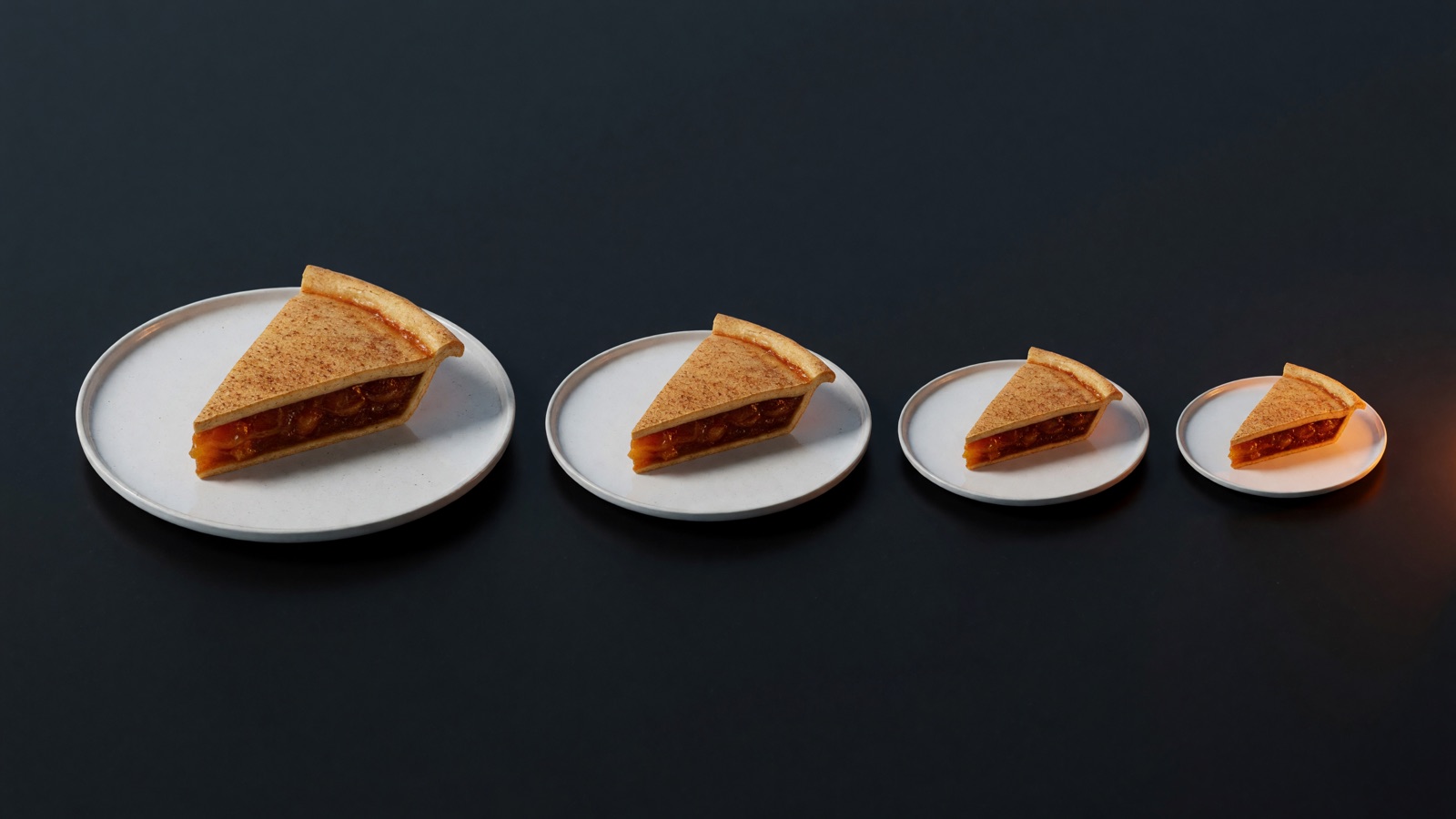
    The same pie slice on a series of plates that shrink from left to right
    Same 55%. The pie it is cut from has been redefined four times since 2020.

    The contractual long-form advertising split has been 55% creator, 45% YouTube since it was standardised in 2013. Google’s own business-model document states it; YouTube reaffirmed it in February 2025. Every credible attempt to back out the effective payout share from YouTube’s rolling disclosures (“over $30bn in three years”, “over $70bn”, “over $100bn in four years”) lands in a 51% to 64% band around 55%, with no downward trend that survives the estimation error.

    Across the whole decade there are exactly two places the share itself got worse, and both are narrow. Since November 2020, YouTube can run ads on videos from channels below the Partner threshold at a 0% creator share. And music licensing comes out of the Shorts pool before the creator’s 45% is applied. Neither comes close to explaining a decline of this size.

    What did get rewritten, repeatedly, is the base the percentage applies to. Shorts pay 45% of a pool that has already had music deducted. From February 2027, YouTube Premium will pay creators from a pool equal to 30% of net subscription revenue, split 55/45 by format, which works out to roughly 16.5 cents of a long-form Premium dollar. Shopping affiliate is a split of a merchant commission whose median is 15%. Sub-threshold inventory pays zero. Four new bases in six years, each with a less favourable formula than the original, each announced rather than negotiated. The headline percentage survives every one of them, which is precisely why it survives.

    Four things moved under the share. You control almost none of them.

    1. Format mix

    Shorts went from 30 billion daily views in 2022 to 200 billion in 2026. They now supply 61% of measured YouTube views (Metricool, 800,000 videos, 71,000 accounts) at 3% to 14% of the long-form rate. AIR Media-Tech’s 2026 data across 300 channels puts median long-form RPM near $2.30 and US Shorts RPM at $0.33; you need 11,000 to 34,000 Shorts views to match 1,000 long-form views. Blend a very-high-view, very-low-rate surface into your average and per-view income falls while long-form rates stand still.

    The substitution is real, too. A study of 250 channels with 100,000+ subscribers found long-form views fell by a mean of about 740,000 per channel after the channel’s first Short. The average length of YouTube’s most popular videos compressed from around 35 to 28 minutes, and algorithm-suggested video length halved from 80 to 40 minutes. Ad breaks scale with duration; shorter videos carry fewer of them. The feed decided which format grows and what it pays. Your lever: which format you feed it.

    2. Ad prices

    Alphabet’s own filings show cost-per-click falling every year from 2015 to 2020. On the buy side, YouTube CPMs fell 16% to 23% in three of the last four fourth quarters. The Q4 2025 figures are unusually clear: YouTube ad impressions grew 38% while advertiser spend on YouTube grew 13%. Arithmetically that is an 18% CPM decline. A publisher put it plainly back in 2020: “We’re creating inventory faster than they can fill it.”

    On a channel it looks like this. Across the same panel of creators, average views per post rose from 3,405 to 5,985 between February 2025 and February 2026, while monetised playbacks per post fell from 576 to 238. More attention, fewer paid events per unit of attention. Your lever on the auction clearing price: none.

    3. Inflation

    US CPI-U rose 39.1% from the 2016 annual average to July 2026. A creator whose nominal RPM never moved lost 28% of purchasing power per thousand views without a single policy changing. Long-form nominal rates are roughly flat across the decade, and flat is a cut. Nobody indexes a revenue share to CPI. Your lever: none.

    4. Supply

    Uploads went from 300 hours a minute in 2014 to over 20 million videos a day in 2026. Goldman Sachs counts roughly 50 million creators globally, growing 10% to 20% a year, with the professional share stuck near 4%. A steady professional share inside a growing population means more professionals exist and the odds of becoming one stay flat. Survey data agrees: 56.55% of full-time creators now earn below a living wage, up from 48% in the previous wave (NeoReach, 3,000+ creators). Your lever on how many people upload tomorrow: none.

    Meanwhile, the platform’s side of the ledger

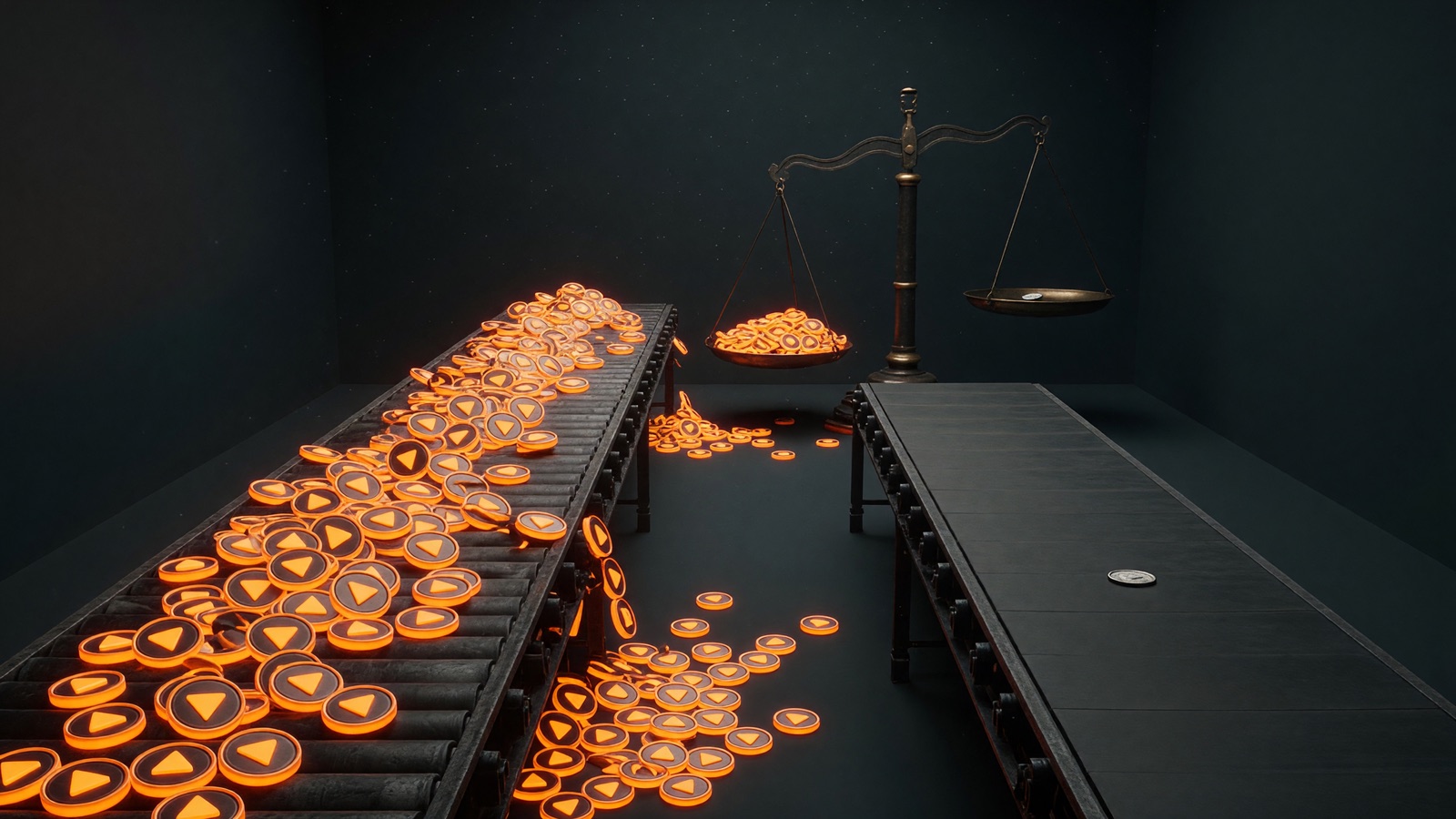
    The platform earns on volume. You earn on price per view. Only one of those went up.

    Two conveyor belts: one overflowing with glowing play-button tokens, one carrying a single coin, with a scale tipping to the volume side
    Impressions grew 38% in Q4 2025. Advertiser spend grew 13%. The auction did the rest.

    YouTube advertising revenue went from $11.2bn in 2018 to $40.4bn in 2025, and total YouTube revenue including subscriptions passed $60bn. Using viewers as the denominator, because that is the one quantity both sides actually report, platform ad revenue per viewer rose about 2.6× between 2018 and 2026 on the best available estimates (the 2018 endpoint is reported; the 2026 endpoint uses a viewer forecast and an estimated ad revenue figure). Indexed to 2018:

    Series 2018 2026 Change
    YouTube advertising revenue 100 403 +303%
    Platform ad revenue per viewer 100 262 +162%
    Creator long-form RPM, nominal 100 115 +15%
    Creator long-form RPM, real 2016 $ 100 86 −14%
    Creator blended RPM incl. Shorts, real 2016 $ 100 37 −63%
    Platform and creator earnings per unit of attention, indexed to 2018. Creator series use a central RPM path built from disclosed creator data; see methodology note.

    Nobody at YouTube had to decide to pay creators less. Revenue sharing on auction-priced, supply-elastic inventory does it on its own: the platform’s revenue grows with impression volume, the creator’s revenue depends on price per impression, and volume has outrun demand every year. All of the price risk sits with the creator, all of the volume gain sits with the platform, and the contract reads the same on both days. A creator who owned any part of the terms would have priced that risk. A creator who rents the terms absorbs it.

    The best landlord in the market is still a landlord

    Movers wheel away the glass walls of a creator's studio while a small circle of people stays around the desk, lit warm
    The walls belong to the platform. The people around the desk don’t.

    YouTube publishes more than anyone else, and by a distance. Meta paid creators “nearly $3 billion” in 2025 against $196bn of ad revenue, about 1.5%. TikTok has never published a percentage for organic content. Meta ended three named revenue-share products on a single day in August 2025 and moved to flat guarantees. X launched revenue sharing in 2023, pivoted it twice, and closed it on 7 August 2026 with about a month’s notice. Of the four large ad-funded platforms, only Twitch publishes an explicit contractual creator percentage today.

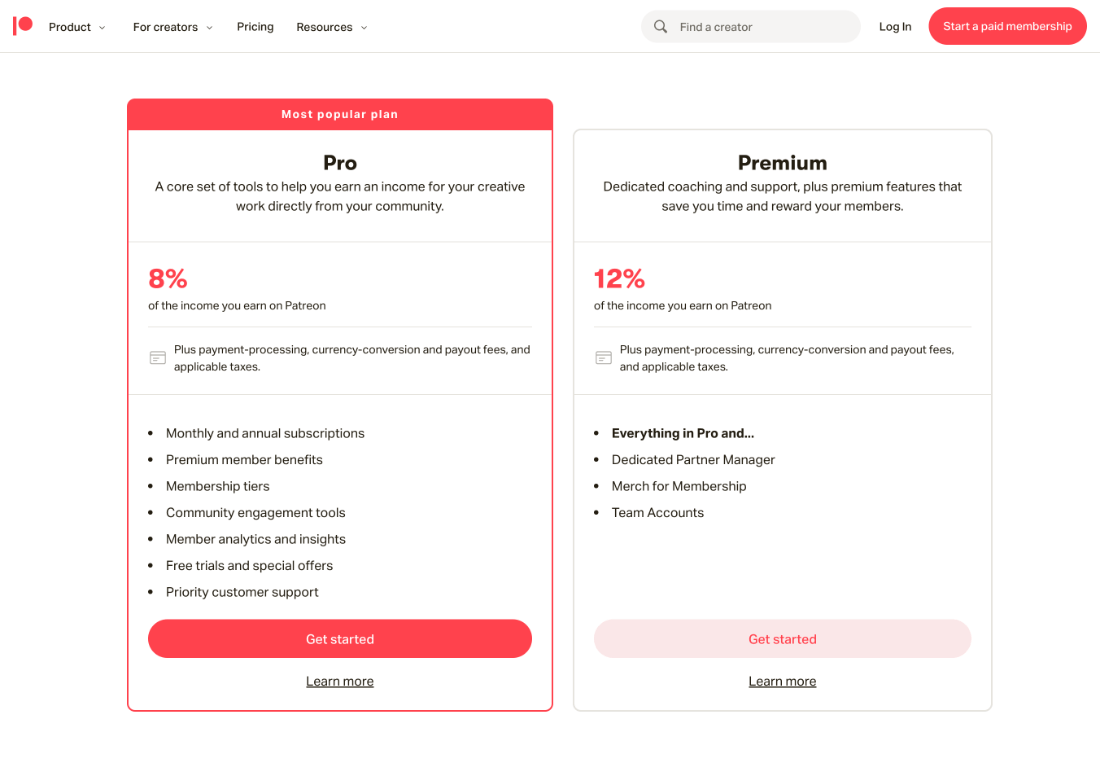
    Off the ad platforms: Patreon’s standard fee is 10% for pages created since August 2025 (the 8% tier is grandfathered), Substack is 10%, Ko-fi is 0% to 5%.

    The lesson is smaller than “stay on YouTube” and larger than “leave it.” No ad platform prices your relationship with the people who watch you. They price impressions, and they reserve the right to reprice them, redefine them, or stop paying for them, on their calendar. A published 55% beats an unpublished formula every day of the week. It still describes a rental agreement.

    Stop optimising a deal you don’t control

    These follow from the mechanisms, not from drawing a trend line into the future.

    The revenue lines growing fastest sit outside the auction. Over half of Partner Program channels earning five figures or more in 2024 earned from non-ad sources. Sponsored videos grew 54% year on year in the first half of 2025, led by creators averaging 100k to 500k views. Direct fan payments, affiliate and brand deals never pass through the CPM mechanism. They price the relationship, and the relationship is the one number in this article that didn’t shrink.

    Treat per-view ad income as structurally declining. More supply, cheaper-to-make short content, inventory outgrowing demand: each of these feeds the others. Views up 76% and monetised playbacks down 59% on the same channels is what that looks like on a dashboard.

    Watch-time depth is the defensible asset, not view count. Long-form carries the ad slots, the Premium skew, and the sponsorship inventory. In one dataset a 120-minute video earned on average 100× a 20-minute one. The algorithm has moved against length, so this is a positioning choice made against the platform’s distribution incentives.

    Price contractual clarity as a feature. Any income line that depends on an unpublished, revocable formula deserves a discount that a published 55% does not. Meta’s overnight shutdowns and X’s one-month notice show what “formula” means in practice.

    Watch access, not share. The last three years are unchanged percentages plus rising thresholds. Model eligibility risk at least as carefully as rate risk, because that is where the August 2026 changes actually landed.

    The one asset that isn’t denominated in views

    The report behind this article tests two hypotheses. The first, that platforms deliberately compressed creator value, fails on the evidence. The second, that creators went from scarce partners to abundant suppliers, holds for generic attention and fails for identifiable audiences: platforms are visibly bidding for named talent, and mid-tier sponsorship demand is growing fastest. The market split in two. Undifferentiated views became a commodity priced by an auction you don’t attend. A group of people who chose you, and would find you again if the feed forgot you tomorrow, became more valuable, and it sits outside every table above.

    Most creators already own that second thing. Very few hold it on terms they set. The ad share can’t be renegotiated by you, the format mix can’t be voted on, and the eligibility bar moves when the platform says it moves. Asking the people who chose you, directly, once, on terms you publish and keep, is the only version of this business where the contract stops changing underneath you.

    Put the whole decade in one line: attention you rent is getting cheaper. Relationships you own are getting more valuable.

    So the practical conclusion is narrower than “leave” and bigger than “diversify.” YouTube is an extraordinary distribution machine, and by the numbers above it is the most generous one in the market. Use it for distribution. Then treat the relationship that distribution creates as an asset you control, with terms you wrote, on a page you can’t be evicted from. Distribution and ownership are two different things, and the last ten years are what happens when creators run their whole business on the first one.

    That second thing is what we build. Base.Tube’s Content Pass lets your fans buy access once and keep it, and pays you 90% at the moment of purchase, on terms that are written down and don’t move. It sits alongside your channel; the channel keeps doing the distribution. If the numbers in this piece describe yours, that is the part of the business worth owning first.


    Methodology note

    YouTube has never published RPM or CPM data, and the RPM metric itself only appeared in YouTube Studio in July 2020, so no primary per-view series exists. Revenue-share terms, thresholds, Alphabet financials and CPI are primary sources. Creator per-view figures are drawn from disclosed creator data (Business Insider creator interviews 2020 and 2022, AIR Media-Tech’s 300-channel 2026 study, Metricool’s 2026 format study, r/PartneredYoutube retrospectives). The “central RPM path” used for the 44M/141M and indexed figures is a midpoint of the documented range for each year ($2.25 in 2016, $2.00 in 2018, $2.60 in 2020, $3.50 in 2022, $2.80 in 2024, $2.30 in 2026) and is an assumption made to permit the arithmetic; the conclusions about direction and mechanism rest on reported data and are considerably more robust than any point estimate. Full source list on request.

    Sources (selected)

  • Holiday Membership Showdown: Patreon vs Ko-fi in 2026

    Holiday Membership Showdown: Patreon vs Ko-fi in 2026

    Holiday Membership Showdown: Patreon vs Ko-fi in 2025

    Last holiday season I had one mission: capitalize on the mid-November to early January engagement spike instead of waiting for ad revenue to sag in January. I ran identical “holiday club” campaigns on Patreon and Ko-fi over 90 days (November 15 to February 15, 2024–2025) to answer a simple question: which platform truly delivers for a mid-sized creator?

    Key Takeaways

    • Ko-fi delivered about 12–18% more net income in that 90-day window, largely thanks to lower platform cuts and instant payouts.
    • Patreon memberships felt stickier, with ~88–90% of patrons retained into February vs. ~80–82% on Ko-fi.
    • Use Ko-fi as a fast “seasonal tip jar + bundles” engine; use Patreon for an ongoing fan club with robust community tools.
    • Setup time: ~45 minutes on Ko-fi (with Gold plan), ~90+ minutes on Patreon Pro—Patreon assumes long-term builds, Ko-fi loves spur-of-the-moment sprints.
    • My 2025 playbook: Hybridize—Ko-fi for quick holiday cash and one-offs, Patreon for sustained membership value.

    Experiment Setup

    I’m a full-time creator in the “creator tools” space (YouTube deep dives, Notion templates, etc.). My audience as of late 2024:

    • ~45,000 YouTube subscribers
    • ~9,000 email newsletter subscribers
    • Active on X (Twitter) and Instagram

    The holiday offer was identical on both platforms:

    • $5 Cozy Supporter: Digital advent calendar with daily prompts & templates, access to a private holiday feed.
    • $15 Holiday Workshop: Everything above plus three live planning sessions (year-end wrap up, New Year goal setting, Q1 content sprint).

    On Ko-fi, I added a pay-what-you-want “Holiday Tip Jar” and a $12 one-off bundle in the shop. On Patreon, I stuck to tiers and used “Commerce” for any extra digital sales.

    Links were split 50/50 across YouTube descriptions and newsletter CTAs with unique UTM tags—close enough to real-world A/B testing.

    First Impressions: Speed vs. Control

    Ko-fi felt like launching a pop-up shop: clean interface, no monetization wizard, instant publishing. With Ko-fi Gold at about $6/month (as of 2024–2025), I paid zero platform fees on memberships and shop items—just the standard ~2.9% + $0.30 processing. I had tiers, a shop bundle, and a tip jar live in roughly 40 minutes, holiday playlist on in the background.

    Patreon felt like a CRM meets community hub. I spent about 90 minutes setting up tiers, benefits, post tags, Discord roles, and Commerce options. Patreon Pro’s 8% platform fee (plus 2.9% + $0.30 processing and a $0.10 payout fee) ensures you think “long-term membership” rather than “seasonal sprint.”

    Money Talk: Fees, Payouts, and Net Income

    This really hit home when holiday cash flow was critical for ad boosts and year-end expenses.

    • Ko-fi gross (memberships + tips + bundles): ≈ $16,200
    • Ko-fi net after payment processing and Ko-fi Gold: ≈ $15,400
    • Patreon gross (memberships only): ≈ $14,700
    • Patreon net after platform + processing fees: ≈ $13,000

    Net on Ko-fi was roughly 18% higher. And payouts landed instantly via PayPal/Stripe, letting me reinvest flash-sale revenue into ads the same day. Patreon stuck to a monthly payout cadence, which felt like driving with the handbrake half on during a seasonal sprint.

    Building Tiers, Bundles, and One-Offs

    I thrive on theming: “Cozy Supporter,” “Holiday Workshop,” even “Festive Goblin” if allowed. Ko-fi’s builder is basic but perfect for:

    • $5 Cozy Supporter tier
    • $15 Holiday Workshop tier
    • $12 one-off digital bundle in the shop
    • Pay-what-you-want tips

    Ko-fi effortlessly handled mixed one-offs and memberships—seasonal experiments shine here. Kickstarter vibes, but without looming deadlines.

    Patreon’s tier system is more powerful: posts, perks, Discord roles, limited-time add-ons layered on evergreen memberships. But its native model skews toward recurring payments. Commerce for standalone winter packs exists, yet fans still think “monthly support.”

    Community & Retention: Post-Holiday Pulse

    After New Year’s, retention shows platform DNA.

    • Ko-fi: Support-only posts, comments, basic messaging. February retention around 80–82%. Feels like an extended tip jar once holiday hype fades.
    • Patreon: Patron-only feed, polls, Discord channels that morph from “Holiday Lounge” to “Q1 Brainstorm.” February retention around 88–90%. Feels like a genuine club, not just a seasonal stop.

    Trade-off: Ko-fi nets more money up front and attracts casual supporters; Patreon nets fewer but higher-committed members who stick around.

    Tech & Integrations: Quality-of-Life Wins

    Ko-fi perks:

    • Stupid-simple embed widgets for live streams (0% platform fee on tips).
    • Instant payouts—plan flash sales and ad buys without delay.
    • Shop + memberships + tips in one dashboard.

    Patreon perks:

    • Advanced analytics (join dates, churn triggers, tier performance).
    • Polls and Discord integration for real-time community feedback.
    • Commerce for digital and physical products alongside monthly tiers.

    Conclusion & Next Steps

    My real-world 2024–2025 holiday test confirmed that no single platform wins every round. Ko-fi excels for swift holiday launches, one-off bundles, and low-commitment tips. Patreon shines for building an enduring micro-community that carries momentum beyond January.

    Next steps for your holiday membership plan:

    1. Decide on your primary goal: quick revenue boost or sustained community growth?
    2. Map out tier/perk names and deadlines—seasonal vs evergreen.
    3. Set up parallel tracking (UTM tags, platform analytics) to compare performance.
    4. Consider a hybrid approach: Ko-fi for flash offerings and tips, Patreon for ongoing membership tiers.
    5. Plan your post-holiday retention strategy—polls, exclusive content, Discord channels.

    Whether you’re a creator launching your first winter campaign or a seasoned pro, use these insights to craft a holiday membership playbook that fills your pocket and warms your community’s heart well into the new year.

  • YouTube Thumbnail CTR: What Makes People Click (+ Free Score Tool)

    YouTube Thumbnail CTR: What Makes People Click (+ Free Score Tool)

    Your video is getting impressions and almost no clicks. That’s not a content problem — it’s a packaging problem, and it’s fixable in an afternoon. This guide covers the two levers that decide whether anyone clicks: what makes a thumbnail earn the click in the first place, and how to A/B test titles and thumbnails so you stop guessing.

    Short on time? You can skip the theory: score any thumbnail free with the Base.Tube CTR Optimizer — upload it, get a 0–100 score plus the specific fixes, in about 30 seconds. No signup.

    What Is a Good CTR on YouTube?

    Click-through rate is the percentage of people who click your video after seeing the thumbnail in their feed. As a working benchmark:

    • Under 3% — your packaging is losing to the competition around it. Fix this before anything else.
    • 4–6% — typical for most niches. Fine, not growing you.
    • 8%+ — your thumbnail is winning attention; the algorithm responds by widening distribution.

    Context matters: CTR naturally drops as YouTube shows your video to colder audiences, so a falling CTR on a video getting more impressions can still be a win. Judge CTR alongside impressions and average view duration, never alone.

    Why CTR Is the Highest-Leverage Number You Control

    Every recommendation system works the same way: if people see your video and don’t click, the platform quietly stops showing it. Your thumbnail and title are the only part of your work that everyone sees — including the 95%+ who never watch a second. A one-point CTR improvement doesn’t add views linearly; it changes how widely the algorithm distributes you, which is why small packaging fixes routinely out-earn hours of editing polish.

    The 7 Things That Actually Make People Click

    Across thumbnail scoring at scale, the same factors separate clicked thumbnails from ignored ones:

    1. One readable focal point. A thumbnail is seen at postage-stamp size on a phone. One face, one object, or one number — not a collage.
    2. Three words or fewer of text. Text that can’t be read at small size is visual noise. If the text repeats the title, delete it.
    3. Contrast against YouTube’s UI. White backgrounds disappear into the page; dark mode swallows dark thumbnails. Strong subject/background separation wins in both.
    4. A face with a real expression. Genuine emotion outperforms the exaggerated shocked-face cliché in most niches — viewers have learned to skip the pantomime.
    5. Curiosity gap, honestly earned. The thumbnail poses the question; the video must answer it. Clickbait spikes CTR and then kills you on watch time.
    6. Visual consistency across your channel. Returning viewers click faster when they recognize your look. A repeatable style is a compounding asset.
    7. Title and thumbnail that complete each other. The strongest packages split the work: thumbnail carries the emotion, title carries the specifics. If they say the same thing, one of them is wasted.

    Not sure which of these your thumbnail fails? Run it through the free CTR Optimizer — it grades each factor and tells you the one change that matters most. And if the verdict is “start over,” the AI Thumbnail Generator builds alternatives from your video’s topic in a minute.

    How to A/B Test Titles and Thumbnails (the Right Way)

    Scoring gets you a strong candidate. Testing proves it with your actual audience. The system:

    1. Pick the right videos to test

    In YouTube Studio, sort recent uploads by impressions and find the ones with healthy impressions but CTR under ~5%. Those are your high-leverage targets — the algorithm is already willing to show them; viewers are declining the offer.

    2. Test hypotheses, not cosmetics

    Changing one adjective teaches you nothing. Test genuinely different concepts: face vs. no face, outcome-promise title vs. pain-avoidance title, big number vs. no number, minimal vs. bold text. Each variant should represent an idea about what your audience responds to — that way even a losing test produces knowledge.

    3. Use YouTube’s built-in Experiments

    YouTube Studio’s “Test & compare” feature splits impressions across up to three thumbnails and reports which earned the most watch share — not just clicks, which protects you from crowning clickbait. Where it isn’t available, rotate variants manually every 24–48 hours and log results, changing nothing else during the window.

    4. Let it run to significance

    Aim for 1,000+ impressions per variant, typically 3–7 days. Calling a winner after 12 hours is how you institutionalize noise. If variants land within a few tenths of a percent of each other, the difference isn’t real — next round, test bigger swings.

    5. Judge on CTR and retention

    A variant that lifts clicks but tanks average view duration made a promise the video doesn’t keep. Keep the hook structure, fix the wording — or fix the intro so the video pays off the promise faster.

    6. Log the pattern, not just the winner

    The compounding value of testing is the pattern library: “big numbers beat vague promises for us,” “clean background beats gameplay clutter.” After 10–15 tests you’ll have a personal playbook that makes every future thumbnail start from a proven baseline — and gives you sharper hypotheses to score before you ever publish.

    The Bigger Picture: CTR Is the Lever You Own

    You don’t control the algorithm, the ad rates, or the policy changes — platforms decide those, and creators live with the consequences. Your packaging is different: it’s one of the few levers entirely in your hands, and it’s the cheapest one to improve. That’s why we built the CTR Optimizer and Thumbnail Generator free: Base.Tube exists to give creators more ownership over their reach and their income, and click-through is where that starts.

    FAQ

    What is the average CTR on YouTube?

    Most videos land between 2% and 10%, with 4–6% typical for established channels. New-to-you audiences (Browse and Suggested traffic) click less than subscribers, so compare CTR within the same traffic source, not across channels.

    Can I change a thumbnail after publishing?

    Yes, at any time, with no penalty. Updating thumbnails on older videos that still earn impressions is one of the fastest free wins on YouTube — the algorithm re-evaluates the new package against live traffic.

    How many thumbnails can I test at once on YouTube?

    YouTube’s Test & compare supports up to three thumbnails per video and declares a winner based on watch-time share. For title tests, rotate manually or re-package older videos.

    How do I know if my thumbnail is good before publishing?

    Score it before you upload: the free Base.Tube CTR Optimizer evaluates readability, contrast, focal clarity, text load, and emotional pull, and returns a 0–100 score with the specific fixes — so your A/B test starts from two strong candidates instead of two guesses.

  • Q4 ’25 Holiday Content Earnings: YouTube, TikTok & Instagram

    Q4 ’25 Holiday Content Earnings: YouTube, TikTok & Instagram

    Every November I morph into a spreadsheet-wielding, coffee-fueled lab rat—three phones on deck, all eyes on Q4 revenue. In 2025 I ran a controlled experiment across YouTube, TikTok, and Instagram, using the same niche (tech gear and creator tools) and identical content themes (gift guides, “best under $50” lists, upgrade rundowns). Here’s exactly what landed in my bank account—and which platform I’d back if holiday posts had to pay my rent.

    FTC Disclosure: This article contains affiliate links. I earn commissions on qualifying purchases. Some posts include sponsored content and brand partnerships; all compensation is disclosed per deal.

    Methodology

    • Timeframe: Nov 20–Dec 31, 2025; earnings recorded in USD.
    • Revenue types: ad RPMs, memberships, live gifts, subscriptions, affiliate commissions, brand deal fees.
    • Net vs. gross: all figures shown are net of platform cuts (YouTube ads 45% cut, TikTok live gifts ~50% cut, Instagram subs/Reels ~30% cut).
    • Affiliate tracking: commissions logged via retailer dashboards; payouts confirmed after return windows closed (by Jan 15, 2026).
    • Brand deals: fees recorded on receipt of payment, net of any agency or management commissions.

    Summary of Net Earnings (Nov 20–Dec 31, 2025)

    • YouTube (ads + memberships + live): ~$3,110 from featured video & one Q&A live (long-form & Shorts contributed beyond that).
    • TikTok (Creator Rewards $1,600 + Live Gifts $3,400 + small brand deals $800): $5,800 total.
    • Instagram (Reels bonuses ~$200 + Subscriptions $1,450 + Affiliate sales $11,000): $12,650 total.

    YouTube: The Q4 Workhorse

    Mid-November RPMs began climbing quietly, then spiked after Black Friday. During the experiment my long-form RPM sat between $3.20–$7.50 per 1,000 views, peaking at $8.10 in a finance-adjacent video. One “10 Creator Gadgets Under $50” guide (dropped pre-Cyber Monday) generated:

    • ~310,000 views
    • Avg. $6.60 RPM (≈$2,000 ad revenue)
    • +96 new members at $4.99/mo (≈$330 net)

    A 90-minute live on Dec 22 brought in another $780 via Super Chats/Super Thanks. By month’s end YouTube comprised roughly 70% of my creator income, thanks to predictable ad payouts, memberships, and occasional live bumps—though each 12–15-minute upload still cost 10–20 hours of work.

    TikTok: Live-Driven Lightning Strikes

    TikTok’s Creator Rewards hovered around $0.40–$0.80 RPM for 60+-second clips. One 1.8M-view video earned ~$1,000. But the real jackpot was live shopping:

    • Dec 19 “Last-Minute Amazon Setup Upgrades” Live (90 min): ~$2,300 net in gifts
    • Smaller Christmas Live (45 min): ~$800 net

    Overall TikTok delivered $5,800: $1,600 in rewards, $3,400 from live gifts, $800 via brand slots. Feels like gambling—unpredictable feed money vs. very lucrative live sessions.

    Instagram: Commerce Over Views

    Reels payouts were negligible (~$200 for 5.8M views). But subscriptions and shoppable content changed the game:

    • Subscriptions: grew from ~260 to ~430 at $4.99/mo, netting ~$1,450.
    • Affiliate sales via link stickers and product tags: ~$11,000 in commissions.

    Instagram itself paid the least per view, but as a shopping funnel it quietly out-earned platform bonuses. It’s less “ad revenue” and more “digital storefront.”

    Key Takeaways

    • YouTube = steady, math-friendly backbone (ads + memberships + live features).
    • TikTok Lives = high-variance but potent holiday gift spikes.
    • Instagram = low direct payouts, powerhouse affiliate and subscription engine.

    If you want predictable Q4 cash, build your foundation on YouTube long-form, layer on TikTok Lives for burst income, and use Instagram as your commerce playground.

  • The 10 Best Episodic Content Tools for Creators in 2026

    The 10 Best Episodic Content Tools for Creators in 2026

    This round-up caught my attention because episodic content stopped being a niche strategy years ago — it’s now the easiest way to keep audiences coming back and please recommendation algorithms. I follow creators who went from random posts to multi-episode franchises, and the tool choices they make determine whether a series feels polished or falls apart in episode three. So I pulled together the tools creators are actually using in 2025 and tested the headlines: which features are meaningful, which are marketing, and what you should pick based on team, budget and platform.

    The 10 Best Episodic Content Tools for Creators in 2025 — what to actually use

    What Makes Episodic Content Different from One-Offs?

    Before the tools, it is worth spelling out why episodic production needs a different toolkit from standalone videos. Three things change when you commit to a series.

    First, arc tracking. A series has narrative threads that span multiple episodes — character arcs, recurring segments, callback references. Without a system to log these, continuity slips through the cracks by episode four. Spreadsheets can do it, but purpose-built tools surface conflicts and gaps faster.

    Second, visual and audio consistency. Audiences notice when your color grade drifts or your lower-thirds use a different font between episodes. Maintaining a consistent look across weeks of production requires templates, presets and sync tools that one-off projects never need.

    Third, batch workflows and scheduling. Episodic creators shoot, edit and publish on a repeating cadence. That means recurring shoot schedules, batch exports, repeatable project structures, and a content calendar that accounts for dependencies between episodes. Tools built for series reduce that friction to near zero.

    These three factors — arc tracking, consistency, batch workflows — are the lens I used to evaluate the tools below.

    Below: a numbered Top 10 with one-line summaries. Read on for feature calls, pricing tiers, a simple decision matrix, and recommended combos by creator profile.

    1. Final Draft — Industry screenwriting with episodic trackers and AI-assisted scene suggestions for long-form arc management. Its strength is structured, dialogue-heavy series where character continuity matters across episodes. The limitation: expensive for what is essentially a writing tool, and collaboration features lag behind cloud-native alternatives. Best for scripted content that tracks recurring characters and plot threads across a full season. (Pricing tier: $$; Platforms: macOS, Windows, iOS, Web)
    2. Celtx Studio — All-in-one pre-production + season planning with built-in episodic trackers and production exports. Celtx covers writing, scheduling and budgeting in one interface — useful for small teams avoiding five separate apps. The tradeoff is depth: its script editor is competent but less refined than Final Draft, and its scheduling module is lighter than StudioBinder’s. Where it shines is the season-level planner that tags scenes across episodes and exports beat sheets directly into production. (Pricing tier: $–$$; Platforms: Web, macOS, Windows, iOS, Android)
    3. StudioBinder — Production management that handles episode-level shooting schedules, call sheets and two-way calendar sync. The operational backbone for teams shooting on location across multiple episodes. Its free tier is surprisingly capable for a single production, but episodic features — recurring cast availability and cross-episode location scheduling — require paid plans. One limitation: web-first, so offline access is limited during field shoots. (Pricing tier: $–$$$; Platforms: Web, iOS)
    4. Storyboard That — Fast visual storyboarding for episode blocking and shot-lists; useful for remote teams and quick iterations. (Pricing tier: $; Platforms: Web)
    5. Adobe Premiere Pro — Editing with batch clip-trim tools and episode-sync presets for consistent cuts across episodes. (Pricing tier: $$; Platforms: macOS, Windows)
    6. DaVinci Resolve — Color, finishing and “Episode Sync” workflows that copy grades, LUTs and timeline settings across episode timelines. The free version is the most capable no-cost editor for series work — multi-timeline projects, Fairlight audio, and solid color grading at zero cost. The Studio upgrade unlocks GPU noise reduction, HDR grading and collaborative workflows for larger teams. Steeper learning curve than Premiere, but the payoff for episodic consistency is significant. (Pricing tier: Free–$$$; Platforms: macOS, Windows, Linux)
    7. After Effects — Motion templates and episode templates to keep title and lower-third design consistent across a series. (Pricing tier: $$; Platforms: macOS, Windows)
    8. Descript — Transcripts, multitrack rough-cuts and Overdub that speed up episodic editing and repurposing. Descript is the fastest path from footage to rough assembly for talk-based series — podcasts, interviews, commentary. Edit the transcript and the video follows. For episodic work, saving speaker profiles and templates across projects means episode two takes half the setup time of episode one. The limitation: Descript is optimized for dialogue, not visual storytelling. B-roll heavy series with minimal narration will hit its ceiling fast. (Pricing tier: Free–$; Platforms: Web, macOS, Windows, iOS)
    9. CapCut — Mobile-first repurposing and batch export to vertical formats with basic scene-aware trims for social episodes. (Pricing tier: Free–$; Platforms: iOS, Android, Web)
    10. Canva — Social templates, bulk-resize and scheduler that turn episodes into platform-ready assets fast. (Pricing tier: Free–$; Platforms: Web, macOS, Windows, iOS, Android)

    Why these 10 matter — and what to watch for

    You’ll see a pattern: pre-production tools focus on season arcs and episode trackers (Final Draft, Celtx), production managers keep logistics tight (StudioBinder), post tools solve consistency at scale (Premiere, DaVinci, After Effects), and social tools close the loop (Descript, CapCut, Canva). The tradeoff is always best-of-breed vs. consolidated suites. For solo creators, integrated suites reduce friction; for larger teams, advanced post features and robust integrations win productivity back.

    Concrete episodic features and examples

    • Episode / Arc trackers: Final Draft (2024/13 update) added scene-assist features that suggest alternate beats for recurring characters — useful for mapping arcs across episodes. Celtx’s season planner lets you tag scenes and export episode-level beat sheets to production.
    • Episode Sync (post): DaVinci Resolve supports copying color grades, LUTs and timeline presets across multiple episode timelines so every ep keeps the same look without repeating tweaks. Premiere’s project templates and batch export features speed up iterative cuts.
    • Two-way integrations: StudioBinder and Final Draft integrations reduce manual exports: scripts -> shooting schedule -> call sheets can now flow without rekeying, saving hours per episode on average in small productions.
    • AI that helps, not replaces: Descript transcribes and marks speaker changes to speed up rough cuts; Premiere/DaVinci’s AI trims and scene-detection speed repetitive tasks. These are pattern-match assistants — still require human oversight for tone and story.

    Free vs Paid: Where to Draw the Line

    Most tools on this list offer a free tier or trial. When do you actually need to pay? After testing free versions against episodic workflows, the answer comes down to two factors: episode volume and team size.

    For a solo creator producing fewer than four episodes per month, free tiers cover surprising ground. DaVinci Resolve free handles editing, color and audio. Canva free provides enough templates for thumbnails and social assets. CapCut is free for most features. You can run a lean episodic workflow without spending a dollar.

    The cracks appear when volume or collaboration increases. Free tools cap storage, export quality, or team seats. Descript’s free transcription hours run out fast if episodes exceed twenty minutes. Canva free lacks Brand Kit, meaning you manually match colors and fonts each episode instead of locking them once. StudioBinder’s free plan supports a single project — fine for one series, limiting if you run multiple shows.

    The paid features that deliver the clearest ROI for episodic creators are: batch export (saves hours per episode), brand/template locking (prevents visual drift), and multi-user permissions (avoids version conflicts). If your series hits five or more episodes and involves anyone besides you, paid tiers typically pay for themselves within the first month.

    Pricing & platform cheat-sheet

    Below I use price buckets rather than exact dollar figures to keep this useful across frequent vendor changes: Free, $ (≤ $15/mo per seat), $$ ($15–$50/mo), $$$ ($50+/mo or enterprise). Platform column lists where the apps run natively or in-browser.

    Tool Pricing Tier Platforms Standout Episodic Feature
    Final Draft $$ macOS, Windows, iOS, Web Scene/arc tracking + AI scene suggestions
    Celtx Studio $–$$ Web, macOS, Windows, iOS, Android Season planner + script → production export
    StudioBinder $–$$$ Web, iOS Episode-level scheduling & two-way calendar sync
    Storyboard That $ Web Fast visual storyboards and shot lists
    Adobe Premiere Pro $$ macOS, Windows Batch trims, project presets & episode templates
    DaVinci Resolve Free–$$$ macOS, Windows, Linux Episode Sync: copy grades/LUTs across timelines
    After Effects $$ macOS, Windows Motion/episode templates for consistent graphics
    Descript Free–$ Web, macOS, Windows, iOS Transcripts, Overdub, multitrack rough-cuts
    CapCut Free–$ iOS, Android, Web Batch export & vertical-first repurposing
    Canva Free–$ Web, macOS, Windows, iOS, Android Bulk-resize templates + scheduler

    Quick decision matrix: which tool if you…

    Profile Budget Quick pick
    Solo creator / vlogger Low Descript + CapCut + Canva (integrated, low-cost)
    Duo / small team Moderate Celtx + Premiere + Descript
    Mid-size indie show Moderate–High Final Draft + StudioBinder + DaVinci Resolve
    Studio / high-output High Final Draft + StudioBinder + Premiere/After Effects + centralized asset storage

    Recommended combos by creator profile

    • Solo / Duo (fast turnaround): Descript (scripted repurpose + rough-cuts) → CapCut (vertical exports) → Canva (thumbnails & posts).
    • Small team (season planning): Celtx (season tracker) → Premiere Pro (editing) → Descript (transcripts & cutdowns).
    • Indie series / mid-size (polish): Final Draft (arc tracking) → StudioBinder (scheduling) → DaVinci Resolve (color & Episode Sync) → After Effects (motion templates).
    • High-output studio: Final Draft + StudioBinder with asset management (cloud) + Premiere/After Effects + dedicated social repurpose pipeline (Descript, CapCut, Canva).

    Workflow Example: Planning a 6-Episode YouTube Series

    Here is a concrete walkthrough of how the recommended solo creator stack — Descript, CapCut and Canva — handles a six-episode YouTube series from planning through publication.

    Week 1: Planning and scripting. Outline all six episodes in a single document — a Google Doc or Notion page works fine. Define the through-line: what connects episode one to six, what recurring segments exist, and what the visual identity looks like (intro style, color palette, thumbnail template). Lock these decisions before recording. Changing your intro format at episode four looks sloppy and costs time.

    Week 2-3: Recording and rough assembly. Record in batches — two or three episodes per session. Import footage into Descript, which transcribes automatically. Edit by reading the transcript: cut filler, rearrange sections, mark highlights for social clips. Save speaker labels and your project template after episode one so subsequent episodes inherit the same structure. By episode three, per-episode editing time drops roughly 30-40% because the tool already knows your speakers and settings.

    Week 3-4: Social repurposing and packaging. Export final cuts from Descript, bring highlight clips into CapCut for vertical reformatting — batch export handles aspect ratio conversion and auto-captioning for Shorts, Reels and TikTok. In Canva, build your thumbnail template: same layout, font, color scheme, with a swappable image and episode number. Duplicate five times, swap visuals, six consistent thumbnails in under twenty minutes. Use Canva’s scheduler to queue social posts alongside each publish date.

    The result: Six episodes, visually consistent, social assets ready, using three tools costing between zero and fifteen dollars per month combined. No production management software needed at this scale.

    Buyer’s checklist — test these before you commit to an annual plan

    1. Integration test: can script/beat sheets flow into production schedules without manual copy/paste?
    2. Export formats: does the tool export to the formats your post team needs (AAF, XML, PDF, SRT)?
    3. Team permissions & version control: does it support per-episode versions and rollback?
    4. Storage & transfer: are assets centralized or do you need a separate DAM/CDN?
    5. AI transparency: can you see and edit AI suggestions (transcripts, scene suggestions, trims) before committing?
    6. Trial + templates: is there a free trial and episode templates to test at least two episodes end-to-end?
    7. Cost per seat vs. per-project: calculate real cost for your season (seats × months + storage + exports).

    How I tested these

    I built small pilot workflows for solo, duo and mid-size teams: wrote sample episode outlines, exported to production, ran a single shoot day schedule and pushed footage through edit, grading and social repurposing. I judged each tool on: episode consistency (did titles, lower-thirds, color match?), integration friction (how many manual exports?), and AI usefulness (time saved vs. required fixes).

    Frequently Asked Questions

    Can I use free tools for episodic content?
    Yes, up to a point. DaVinci Resolve free, CapCut and Canva free handle a solo series of four to six episodes per month without major friction. You will hit limits on transcription hours (Descript), brand kit features (Canva) and collaborative editing once you scale beyond that or add team members. Start free, upgrade only when a specific bottleneck forces the switch.

    What is the minimum tool stack for a series?
    At minimum, an editor and a template tool. Descript or DaVinci Resolve for editing, plus Canva for thumbnails and social assets, covers the essentials. Add a project management tool (even a free Notion board) once you pass three episodes or add a collaborator. Everything else is optimization.

    How do I keep visual consistency across episodes?
    Lock decisions early: color grade, fonts, intro/outro templates, thumbnail layout, lower-third style. Build these as presets in your tools before episode one. In DaVinci Resolve, save a PowerGrade and apply it across timelines. In Canva, create a Brand Kit (Pro) or a locked template (free). In Descript, save your project as a template with speaker labels and export settings. The principle: define the look once, replicate mechanically, resist the urge to “improve” mid-season.

    Final thoughts / TL;DR

    Pick for workflow fit, not hype. If you’re solo, favor integrated, low-cost stacks (Descript + CapCut + Canva). If you manage seasons and teams, invest in Final Draft or Celtx for arc tracking, StudioBinder for production, and Premiere/DaVinci for consistent post. Use AI to speed grunt work — not to write your beats. And before you subscribe, test two episodes end-to-end to reveal the hidden admin costs of stitching apps together.

    {{INFO_TABLE_START}}
    Publisher|Base.tube
    Release Date|2025-12-03
    Category|Episodic & Long-form Content tools
    Platform|Multi-platform (Web, macOS, Windows, iOS, Android)
    {{INFO_TABLE_END}}

  • AI-Generated Content Sparks Platform Ban Wave — What Creators Need to Know

    AI-Generated Content Sparks Platform Ban Wave — What Creators Need to Know

    This caught my attention because creators have been quietly building AI into workflows for ideation, editing and even voiceovers – and now the platforms that pay and promote our work are suddenly saying “not so fast.” The result is a global ban wave and new disclosure rules that will change how we make and monetize content in 2025.

    AI-Generated Content Sparks Platform Ban Wave: Why creators should care

    • Platforms (notably Meta, YouTube, TikTok) moved from takedowns to proactive bans and mandatory AI labeling to curb misinformation, identity misuse and IP risk.
    • New laws and regional drafts (EU, US-adjacent rules, China, India draft) raise stakes – noncompliance can mean removal, demonetization or account suspension.
    • Practical reality: creators must audit AI tool use, disclose clearly, and favor platform-native or licensed AI to avoid false positives and brand risk.

    {{INFO_TABLE_START}}
    Publisher|Base.tube
    Release Date|2025-11-30
    Category|Platform Policy
    Platform|Meta, YouTube, TikTok, Global
    {{INFO_TABLE_END}}

    The headline: by late 2025 major platforms implemented mandatory labeling and selective bans – think realistic AI videos and audio needing visible tags, bans on general-purpose chatbots in business messaging, and automated systems scanning for synthetic media. Why now? Platforms are juggling user safety, mounting regulation and advertiser fears. That combination makes prevention cheaper than court fights or huge fines.

    Meta, YouTube and TikTok are all pushing disclosure-first policies. Meta automatically tags ads created with its generative tools and has moved to block certain chatbots on WhatsApp Business. YouTube is pushing an explicit “AI-synthesized” disclosure and a likeness-detection system to protect creators from unauthorized deepfakes — a welcome move, but one that puts monitoring burden on creators too. TikTok is demanding visible disclosure for realistic AI edits and has strong enforcement for non-compliance.

    Regulation is the accelerant here. New AI rules across jurisdictions (from Europe’s safety pushes to China’s content controls and India’s draft label specs) are forcing platforms to bake compliance into product behavior. That’s why we’re seeing not just policy updates but automated detection pipelines and metadata requirements — and why content provenance matters more than ever.

    There are already concrete consequences: streaming platforms flagged large volumes of synthetic music as low-quality or fraudulent and removed it, and political deepfakes were taken down after high-profile events. Those cases show platforms will act swiftly when high scale or risk to public discourse appears — but they also reveal the risk of false positives, especially for smaller creators who remix, edit, or use AI-assisted tools as part of legitimate workflows.

    What this means for creators

    Short version: treat AI as a documented tool, not a secret hack. Audit tools, label work visibly, and prefer platform-approved or clearly licensed AI services. Brands will want proof of transparency; platforms will expect metadata and may restrict monetization on undisclosed AI content. Also expect friction: extra steps for verification, potential takedowns from detection errors, and changes in partnership deals where brands demand stricter guarantees about authenticity.

    • Audit every AI tool you use and document how it contributes to each piece of content.
    • Use platform disclosure fields and visible labels/watermarks when required.
    • Favor platform-native AI features or vendors with clear licensing and provenance.
    • Keep provenance records — timestamps, prompts, licenses — in case you need to appeal a strike.

    Personally, I’m excited that platforms are giving creators legal cover against deepfakes and identity theft. I’m skeptical, though, about over-reliance on automated detectors — they will flag legitimate work and add friction to creators’ lives. This feels like regulation catching up to practice: good for trust, messy in execution.

    TL;DR

    Platforms are enforcing AI disclosure and banning risky AI tools to meet regulatory pressure and advertiser expectations. Creators who want to stay visible and monetized should audit their AI usage, label transparently, and choose compliant tools — or risk takedowns, demonetization, or worse.

  • 12 Best Free & Budget Color Grading Software Tools (2026)

    12 Best Free & Budget Color Grading Software Tools (2026)

    Top 12 Budget-Friendly Color Grading Tools for 2025

    Remember when color grading meant big studio budgets? Now it’s a few clicks away—if you’re willing to learn by fire. After dozens of late-night renders chasing that ideal teal and orange, I’ve rounded up 12 free and wallet-friendly grading tools that actually work on client gigs, YouTube Shorts, and branded reels. Let’s roll.

    But first—whether you’re brand new to post-production or just tightening your pipeline—let’s clear up the one question that trips up almost everyone.

    What Is Color Grading vs Color Correction?

    Color correction is the clinical part. You’re fixing white balance, adjusting exposure, and making sure your footage looks natural and consistent shot to shot. Think of it as the dental cleaning—necessary, unglamorous, and nobody notices unless you skip it.

    Color grading is the creative layer on top. It’s where you push teal into the shadows, warm up skin tones, or slap a filmic look across your timeline that says “I meant to do that.” Correction makes your footage accurate. Grading makes it yours. Most of the tools below handle both, but knowing which step you’re on saves hours of going in circles. Always correct first, grade second.

    The 12 Best Free and Affordable Color Grading Tools

    1. DaVinci Resolve (Free & Studio)

    Trading Premiere for Resolve feels like swapping a tricycle for a spaceship. Node-based workflows, precision curves, LUT support, facial recognition and Blackmagic’s free training make it the pro standard at zero cost.

    The Color page alone justifies the install—color wheels, curves, qualifier selections, power windows—tools that would cost hundreds elsewhere. The node graph lets you stack corrections non-destructively, so your creative grade sits cleanly on top of your technical fix. The free version skips HDR Dolby Vision and Neural Engine features like Magic Mask (Studio is $295 one-time), but for 90% of YouTube and social content, the free tier is overkill in the best way. Best for anyone willing to invest a weekend learning nodes.

    Pro Tip: Hit up Blackmagic’s official tutorials to master HDR grading and multi-cam matching in record time.

    2. CapCut

    Once “too TikTok” for me, CapCut now rules my mobile and desktop edits. One-tap LUTs, manual color controls, cloud sync and rapid updates let you polish quick stories and reels between coffee breaks.

    The desktop version quietly became a serious editor. HSL adjustments, tone curves, and a keyframe system for animated grades. The AI-powered filters are surprisingly tasteful—less “Instagram 2012” and more “I hired a colorist.” Cloud sync lets you rough-cut on your phone and fine-tune on desktop. Export quality on the free tier can be inconsistent, but for short-form creators who need speed over pixel-level control, nothing beats it.

    Workflow Tip: Build a custom preset from your best-graded clip and apply it as a starting point to every new project. CapCut saves presets across devices.

    3. Adobe Premiere Rush

    If you’re deep in the Adobe ecosystem, Rush’s Auto Color cleans up about 80% of your clips instantly. Seamless cloud syncing and broadcast-safe presets keep your edits tight across desktop and mobile.

    Rush isn’t trying to be Premiere Pro—it’s trying to be fast. Exposure, contrast, highlights, shadows, vibrance, and curated looks. A full color pass on a 3-minute vlog takes five minutes. The downside: subscription cost if you’re not already on Creative Cloud, and power users will hit the ceiling fast—no curves, no wheels, no scopes. Best for Adobe subscribers who want quick mobile-to-desktop edits.

    4. VSDC Free Video Editor

    On a crusty Windows laptop, VSDC’s RGB curves, LUT imports, masking and chroma-key tools rescued me from Movie Maker purgatory. The interface is retro, but the community LUT swaps are pure gold for moody docs.

    VSDC punches above its weight for a free Windows-only editor. Lift/gamma/gain wheels, color scopes, and split-toning controls that most free tools skip. It runs on CPU rather than GPU—great on older hardware, limiting on newer projects. The UI takes getting used to, but once you map your shortcuts it’s a workhorse. Best for Windows users on older machines who need real grading tools at zero cost.

    5. Lightworks (Free & Pro)

    My first editing crush, Lightworks still delivers real-time scopes, broadcast-safe grading tools and GPU acceleration. The free version caps exports at 720p, but it nails your look before you decide if Pro is worth it.

    Lightworks has Hollywood pedigree—it cut “The Wolf of Wall Street” and “Pulp Fiction.” Vectorscope, waveform, histogram, and a grading panel built around broadcast standards. If you’re learning scopes for the first time, Lightworks makes them approachable. The 720p cap is irrelevant for learning; for client delivery, Pro is $9.99/month. Best for beginners who want scope-based grading in a professional environment.

    6. HitFilm Express

    After wrestling with After Effects, HitFilm’s free color wheels, curves, LUTs and built-in VFX felt like a warm hug. Just watch your RAM when stacking multiple effects.

    HitFilm’s killer combo is editing plus compositing in one app. Three-way color wheels, hue/saturation curves, and solid LUT imports. The VFX integration means your grade plays nicely with motion graphics—no round-tripping. RAM management is the Achilles’ heel though. Close background apps and work in proxy mode for complex timelines. Best for creators who blend VFX and color grading in the same project.

    7. iMovie

    Don’t sleep on iMovie. Its Auto Color and intuitive sliders crank out polished family clips and branded bangers on Mac in minutes. It’s shallow but lightning-fast when you need speed over depth.

    iMovie does one thing brilliantly: it gets out of your way. Brightness, contrast, saturation, color temperature, and a handful of cinematic filters. No curves or color wheels—and that’s the point. For quick turnaround content where “looks good” beats “looks graded,” iMovie wins on time-to-export. If you shoot on iPhone, the integration is seamless. AirDrop, grade, export. Five minutes. Best for Mac and iPhone users who prioritize speed over creative control.

    8. Cinema Grade

    Point-and-click grading inside Premiere, Final Cut or Resolve. Live previews, scene presets and a Match tool for multi-cam shoots make it a workflow booster once you’ve outgrown the basics.

    Cinema Grade’s trick is visual grading—click on the part of the image you want to adjust (sky, skin, shadows) and drag. No hunting for the right node or wheel. The scene-matching feature saves time on interview shoots where lighting shifts between setups. At $99 one-time it’s the priciest here, but it pays for itself on the first multi-cam project. Best for intermediate editors who want faster results inside their existing NLE.

    9. Color Grading Central LUT Gallery

    This curated LUT shop lets you test film-style presets on your own footage before you buy. Free sample packs and NLE integration saved me hours on a moody short.

    The try-before-you-buy model sets CGC apart from the dozens of random LUT packs online. Upload a still from your project, preview the LUT applied, and decide if it fits. The free packs—especially the film emulation ones—are genuinely usable, not watered-down teasers. Apply one, dial back intensity to 60-70%, and tweak from there. Best for creators who want a cinematic starting point without building looks from scratch.

    10. OpenColorIO (OCIO)

    The backstage hero for color consistency in 3D, VFX and live-action. My Blender and Nuke projects fall apart without it. Open-source, rock-solid and a must if you despise color chaos.

    OCIO isn’t an editor—it’s a color management framework. It ensures what you see in Blender matches what comes out of Nuke matches what lands in Resolve. For multi-app pipelines, that consistency is non-negotiable. Setup takes effort—config files, display transforms, possibly cursing at YAML syntax—but once running, your pipeline stays color-accurate end to end. Best for VFX artists working across multiple applications.

    11. Blender Video Sequence Editor (VSE)

    Blender’s VSE brings node-based grading into the open-source world. Link your animation or comp directly and tweak curves without hopping between apps. The community docs are a big plus.

    If you’re already in Blender for 3D, the VSE keeps everything under one roof. Color balance and curves modifiers work well, and the compositor’s node system handles complex grades that would need plugins elsewhere. Playback can chug on heavy timelines, but for animation and VFX projects where grading is part of compositing, it eliminates unnecessary exports. Best for Blender users who want to grade without leaving the ecosystem.

    12. Olive Video Editor

    Still in alpha but already packing real-time grading in a clean interface. Discord-driven LUT experiments, frequent updates and a sleek design make Olive perfect for early adopters hungry for fresh features.

    Olive feels like what a modern open-source NLE should be: fast, clean, focused. Curves, color balance, and LUT support are already in place, and the real-time playback is impressive for alpha software. The risk: alpha means crashes and breaking changes. Don’t use it for client work yet, but keep it installed and watch it grow. Best for tinkerers and open-source advocates.

    Comparison Table

    Tool Price Platform Best For Learning Curve
    DaVinci Resolve Free / $295 Studio Win, Mac, Linux Serious grading at any level Steep
    CapCut Free / Pro plans Win, Mac, iOS, Android Short-form social content Easy
    Premiere Rush Free / $9.99/mo Win, Mac, iOS, Android Quick edits in Adobe ecosystem Easy
    VSDC Free / $19.99 Pro Windows Budget Windows editing Medium
    Lightworks Free / $9.99/mo Win, Mac, Linux Learning broadcast-grade tools Medium
    HitFilm Free / paid add-ons Win, Mac VFX + color in one app Medium
    iMovie Free Mac, iOS Fast Mac/iPhone edits Easy
    Cinema Grade $99 one-time Win, Mac (plugin) Visual grading in your NLE Easy
    CGC LUT Gallery Free samples / paid packs Any NLE Quick cinematic looks Easy
    OpenColorIO Free (open-source) Win, Mac, Linux Multi-app color consistency Steep
    Blender VSE Free (open-source) Win, Mac, Linux 3D/VFX pipeline grading Steep
    Olive Free (open-source) Win, Mac, Linux Early adopters, tinkerers Medium

    Honorable Mentions

    • Shotcut: Open-source editing with steadily improving color controls.
    • Kdenlive: Linux favorite that now wins hearts on Mac and Windows.
    • Avid Media Composer | First: Free Avid workflow for broadcast-safe grades.

    How to Choose the Right Tool

    With twelve solid options, the “best” tool depends on your situation, not a review score. Here’s how I’d narrow it down.

    Budget: Spending zero? Resolve is the answer for dedicated grading. CapCut or iMovie if you want editing and grading in one fast package. VSDC if you’re locked to Windows.

    Platform: Mac users get iMovie free and Resolve runs beautifully on Apple Silicon. Windows users should look at VSDC or Resolve. Linux users—Resolve, Blender, or Kdenlive are your real options, and Resolve is the clear winner.

    Use case: Pumping out daily social clips? CapCut or Rush. Working on a short film? Resolve, no question. Running a multi-app VFX pipeline? OCIO plus Blender and Resolve. Just need a quick look? Grab a LUT pack from CGC and drop it into whatever you already use.

    Learning investment: Willing to spend a weekend learning? Resolve pays dividends for years. Need results in 30 minutes? iMovie or CapCut won’t let you down.

    Shoestring Grading Workflow: Step by Step

    Here’s the exact workflow I use on budget projects. It works in Resolve, CapCut, or any tool on this list with basic color controls.

    Step 1: Pick Your Platform

    • Platform Pick: Resolve or CapCut for most jobs; iMovie for Mac emergencies.

    Match the tool to the job. A 15-second reel doesn’t need Resolve’s node graph. A 10-minute documentary doesn’t belong in CapCut. Be honest about scope before you open anything.

    Step 2: Shoot Flat or Log

    • Shoot Flat/Log: The biggest hack for dynamic grading flexibility.

    If your camera supports it, shoot in a flat or log profile. This preserves highlight and shadow detail you can pull back in post. On iPhone, use Blackmagic Camera or Filmic Pro to unlock log recording. On dedicated cameras, enable S-Log, V-Log, or C-Log. Flat footage looks washed out on set—that’s the point. All the contrast and color come from your grade.

    Step 3: Correct First

    • First Pass: Dial exposure, contrast and white balance—trust your scopes over your eyeballs.

    Set your white balance using a neutral reference point, bring exposure into range (keep skin tones around 70 IRE on the waveform for standard dynamic range), and set contrast. In Resolve, use the primary wheels on a dedicated correction node. In CapCut, use the manual Adjust panel. Don’t touch creative color until this step is clean.

    Step 4: Apply Your Creative Look

    • Quick Looks: Lean on free LUT packs or whip up a custom preset fast.

    Now you grade. Apply a LUT at 60-80% intensity as a starting point, or build a look manually. Push color into the shadows (teal and blue are popular for a reason), warm up highlights, and adjust saturation by hue—pulling orange saturation slightly boosts skin tones without making the whole frame glow. Save this as a preset.

    Step 5: Match Your Shots

    • Shot Matching: Resolve and Cinema Grade shine when you need multi-cam consistency.

    Grab your best-graded shot as the reference. In Resolve, use Shot Match or the still store to compare. In Cinema Grade, the Match tool does this visually. The goal is consistency—viewers notice when one shot is warm and the next is cold, even if they can’t articulate why.

    Step 6: Export Smart

    • Export Check: Mind free-tier limits—Lightworks’ 720p cap taught me to always double-check.

    Check export settings against delivery specs. YouTube wants H.264 or H.265 at 1080p minimum. Instagram compresses aggressively, so export at higher bitrates than you think you need. In Resolve, aim for 20-30 Mbps for 1080p YouTube uploads.

    Step 7: Save Everything

    • Save Presets: Your future self will thank you for reusable grade settings.

    Export your LUTs, save your node trees, archive your presets. Six months from now, a client will ask for “that look from the last project” and you’ll have it ready in seconds instead of rebuilding from memory.

    Frequently Asked Questions

    Is DaVinci Resolve really free?

    Yes, genuinely free—not a trial, not a demo. Blackmagic makes money selling cameras and hardware; Resolve is the gateway. The free version includes the full Color page, Fairlight audio, Fusion compositing, and editing. Studio ($295 one-time) adds HDR tools, Neural Engine AI, and multi-GPU support. For most creators, free is more than enough.

    Can I color grade on a phone?

    Absolutely. CapCut and Premiere Rush both run on iOS and Android with functional color tools—HSL adjustments and curves that didn’t exist on mobile two years ago. The limitation is screen accuracy: phone displays are bright and oversaturated, so your grade might look different on a calibrated monitor. Grade on mobile for speed, but spot-check on a proper screen before final delivery.

    What’s the easiest color grading software for beginners?

    iMovie if you’re on Mac—it’s literally designed so you can’t mess it up. CapCut if you want more control without a learning cliff. Both get you from raw footage to graded export in under 10 minutes. Once you’re comfortable with basic adjustments, move to DaVinci Resolve. The jump feels big, but Blackmagic’s free training videos walk you through everything step by step.

    Do I need a calibrated monitor?

    For client work, yes. For YouTube and social content, probably not—but it helps more than you’d think. An uncalibrated monitor displays colors warmer or cooler than reality, so your “perfect” grade looks off to everyone else. A Datacolor SpyderX ($150) paired with a decent IPS monitor gets you 90% there. If that’s out of budget, turn off “vivid” or “gaming” display modes and view exports on multiple screens before publishing.

    Final Thoughts

    Color grading isn’t an exclusive playground anymore. Whether you’re polishing indie shorts, bootstrapped YouTube channels or viral TikToks, these tools and workflows will make your footage pop without draining your wallet. Now go get chromatic.